> For the complete documentation index, see [llms.txt](https://docs.digibee.com/documentation/llms.txt). Markdown versions of documentation pages are available by appending `.md` to page URLs; this page is available as [Markdown](https://docs.digibee.com/documentation/developer-guide/development-cycle/build-overview/canvas/execution-panel.md).
# Execution Panel
Learn how to test your pipelines or capsules using the Execution Panel on the Digibee Integration Platform.
{% hint style="info" %}
This feature was named "Test mode" until June 2023.
{% endhint %}
The **Execution Panel** allows you to test a pipeline or capsule in the test environment while designing the flow. It uses test values from the [**Globals**](/documentation/developer-guide/development-cycle/build-overview/globals.md), [**Accounts**](/documentation/developer-guide/development-cycle/build-overview/accounts.md), [**Relationship**](/documentation/developer-guide/platform-administration/settings/relationship.md), and [**Multi-Instance**](/documentation/developer-guide/platform-administration/settings/multi-instance.md) services.
This feature helps you validate implementation logic and debug the flow in real time, without needing to deploy it first.
## **Execution Panel overview**
You can open the Execution Panel from the lower-left corner of the **Canvas** or by pressing **Cmd (or Ctrl) + D**.
The panel includes four tabs:
* **Payload:** Input the test data.
* **Results:** Review the input, output, and overall test results.
* **Logs:** Track events and errors.
* **Problems:** See tips to improve your flow and find possible issues in your integration. Check the [Linter documentation](/documentation/developer-guide/development-cycle/build-overview/canvas/canvas-building-validation.md) for details.
Learn more about each tab:
Payload tab
In this tab, you can define the test payload used during execution. It allows you to:
* **Select a specific instance:** When a pipeline is configured as multi-instance, the **Multi-instance** dropdown is displayed so you can choose the instance for the test. For more details, see the [Multi-Instance documentation](/documentation/developer-guide/platform-administration/settings/multi-instance.md).
* **Save the payload:** You can save a payload for later use. Click the **save icon** and assign a name to it. Saved payloads are specific to each pipeline or capsule and are not shared across different flows.
* Once saved, the payloads appear in the **Payloads** column. You can **Delete** or **Apply** a payload. Saved payloads cannot be edited. If you make changes, you must save them as a new payload.
* **Format the JSON:** For better readability, use the magic wand icon to automatically format the JSON.
{% hint style="info" %}
When running an execution in a capsule, the **Parameters** column is displayed. There, you should input the parameters and account values according to the capsule’s configuration.
{% endhint %}
Results tab
Once the test is executed, the output appears in the **Results** tab, a read-only view of the pipeline’s input and output data. Here, you can:
* **Copy the JSON output** to your clipboard.
* **Search specific elements** in the JSON output using a JSONPath expression.
This tab is also particularly useful during test case execution, as any assertion failures are shown here for easier validation.
Logs tab
The **Logs** tab contains information about the event logs generated during pipeline execution in the Execution Panel. In this tab, you can **filter** logs by type, **copy** any log message, and **search** for specific logs by entering part or all of the message content.
The log list displays the following details:
* **Log type:** The classification of the log, indicated by an icon. Available types:
* **Info:** Informational logs
* **Warning:** Logs that indicate warnings
* **Error:** Logs that capture errors during execution
* **Timestamp:** The date and time the step was executed in the pipeline
* **Log message:** The message content of each log
Problems tab
The **Problems** tab shows alerts that need attention in your flow.
Each alert provides a short description of the issue and a link to the relevant documentation. To fix an alert, click **Configure step** to open the corresponding connector’s configuration form directly.
Learn more about [Linter](/documentation/developer-guide/development-cycle/build-overview/canvas/canvas-building-validation.md), a built-in tool on the Canvas that identifies potential configuration issues.
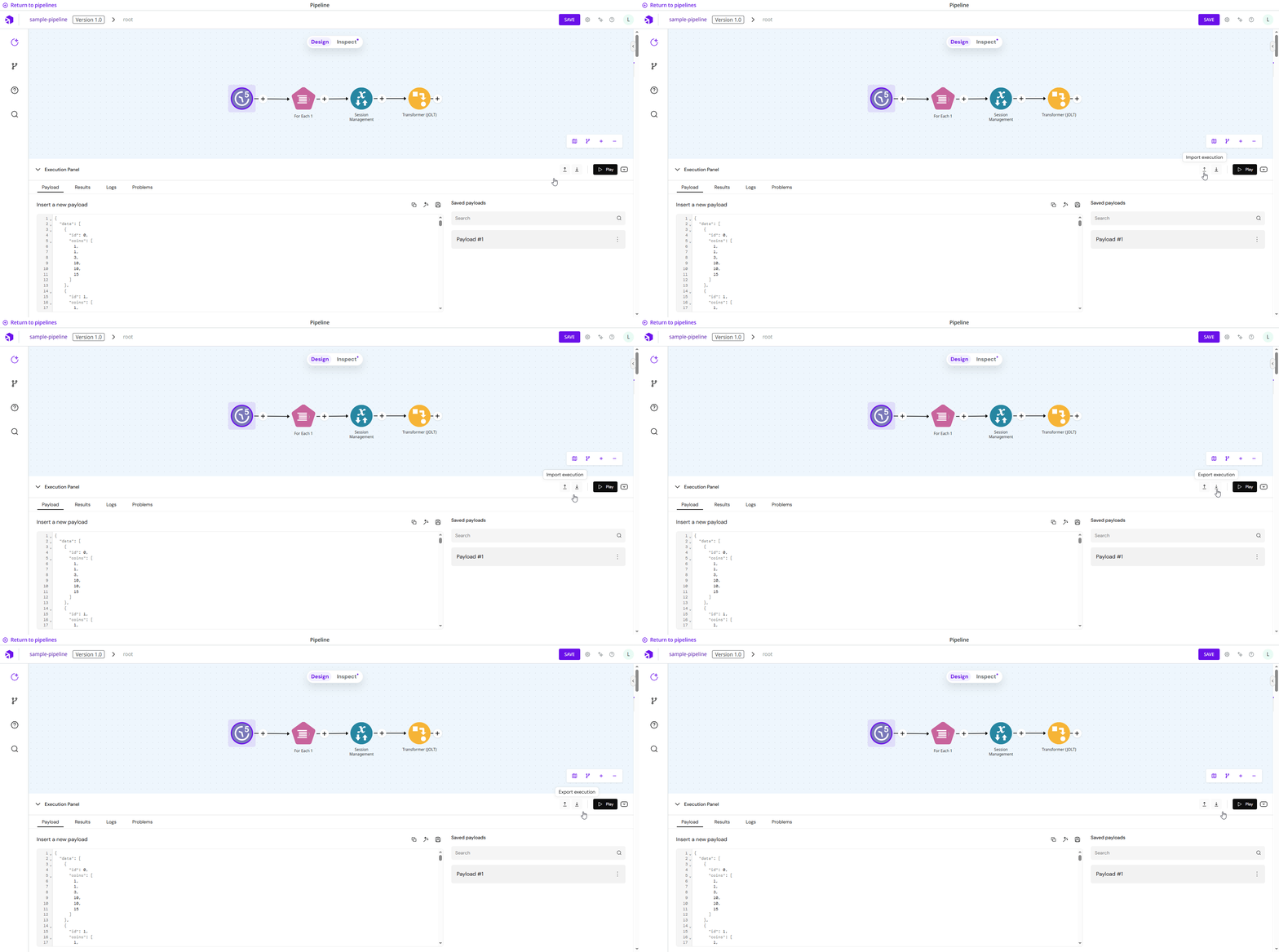
In addition to running tests, you can also **import** and **export** execution files directly from the panel.
Import
Click **Import execution** to upload a file with execution data.
Imported `execution` data appears in the panel, but `currentFlowSpec` and `executedFlowSpec` are not shown in the Canvas.
{% hint style="info" %}
You can only re-run the execution if you're in the same pipeline it came from, and the original flow still exists.
{% endhint %}
Export
Click **Export execution** to download a file containing the pipeline configuration and execution data. Make sure all data is fully loaded before exporting to avoid missing information.
The exported file includes:
* `pipelineId` and `pipelineName`
* `currentFlowSpec`: Flow from Canvas as it was at the time of export
* `executedFlowSpec`: Flow as it was at the time of execution
* `realm`: Pipeline realm
* `execution`: Payload, Output, Messages, and Logs
{% hint style="info" %}
If no execution was run, only pipeline metadata is exported.
{% endhint %}
## **Executing the flow**
By executing a flow, you can test and validate your pipeline or capsule to make sure it works as expected. You can execute the entire flow or just part of it, depending on your needs.
How to execute the entire flow
You can execute the entire flow using one of the following methods:
* Press **Cmd (Ctrl) + Enter**.
* Open the Execution panel and click **Play**.
* Open the Execution panel, click the dropdown next to **Play**, and select **Run pipeline** or **Run capsule**.
Regardless of any selected connectors, these options will always execute the entire flow.
How to execute part of the flow
To execute a specific part of the flow:
#### **Step 1: Select the connectors**
Choose the connectors you want to execute using one of these methods:
* Hold **Shift** and drag the mouse over the desired connectors.
* Hold **Shift** and click each connector individually.
For a selection to be valid, the chosen connectors must be connected and in sequence. Skipping a connector in the middle of the sequence will invalidate the selection.
#### **Step 2: Execute the selection**
After selecting the connectors, you can execute the flow in two ways:
* Press **Cmd (Ctrl) + Shift + Enter**.
* Open the Execution panel, click the dropdown next to **Play**, and select **Run selected steps**.
How to execute from a specific step
You can start the pipeline execution from any chosen step, ensuring that all subsequent steps in the flow are executed. To do this, follow these steps:
1. Click the connector where you want the execution to begin.
2. Open the **Execution panel**.
3. Click the dropdown next to **Play** and select **Run from step**. You can also use the shortcut **Ctrl + Alt + Enter** for Windows or **Cmd (⌘) + Option (⌥) + Enter** for macOS.
The pipeline is then executed from the selected step and continues with the remaining flow.
## **Analyzing the execution results**
After running a pipeline, you can review its results in **two separate areas** of the interface:
#### **1. Overall execution result (Execution Panel)**
The **Results** tab in the **Execution Panel** shows the outcome of the entire pipeline at once. This gives you a quick overview of whether the pipeline ran successfully or if any issues occurred.
#### **2. Individual connector outputs (Left side panel)**
For a deeper look at each connector’s result, go to the **Flow** section in the left side panel and expand the **Messages** accordion. Here, each connector’s output is displayed, up to 5,000 messages. Each connector receives the payload from the previous step, processes it, and generates a new payload.
In the **Messages** view, you can:
* See the connector’s **Step Name** and execution time.
* Search messages by full or partial name, or by connector parameters.
* See a preview of the message, where you also can:
* Download the JSON output.
* Copy the JSON output to your clipboard.
* Filter specific elements using a JSONPath expression.
* Create a mock response in supported connectors. Learn more in the [Connector Mocking documentation](/documentation/developer-guide/development-cycle/build-overview/canvas/mocking.md).
## **Additional information**
Below you will find some important details about the Execution panel and useful keyboard shortcuts.
Execution panel inactivity
If you don’t access the Execution panel for 24 hours, it will become inactive. When you reopen the Canvas, it may take up to 3 minutes for the Execution panel to become active again.
Keyboard shortcuts
**macOS**
* **⌘ + D**: Open or close the Execution Panel
* **⌘ + Enter**: Execute the entire flow\
**⌘ + Shift + Enter**: Execute the selected connectors
* **⌘ + ⌥ + Enter**: Execute from the selected step
**Windows**
* **Ctrl + D:** Open or close the Execution Panel
* **Ctrl + Enter:** Execute the entire flow
* **Ctrl + Shift + Enter:** Execute the selected connectors
* **Ctrl + Alt + Enter:** Execute from the selected step
---
# Agent Instructions
This documentation is published with GitBook. GitBook is the documentation platform designed so that both humans and AI agents can read, navigate, and reason over technical content effectively. Learn more at gitbook.com.
## Querying This Documentation
If you need additional information that is not directly available in this page, you can query the documentation dynamically by asking a question.
Perform an HTTP GET request on the current page URL with the `ask` query parameter, and the optional `goal` query parameter:
```
GET https://docs.digibee.com/documentation/developer-guide/development-cycle/build-overview/canvas/execution-panel.md?ask=&goal=
```
`ask` is the immediate question: it should be specific, self-contained, and written in natural language.
`goal` is optional and describes the broader end goal you are ultimately trying to accomplish on behalf of the user. GitBook uses it to tailor the answer towards what is most useful for that goal.
The response will contain a direct answer to the question and relevant excerpts and sources from the documentation.
Use this mechanism when the answer is not explicitly present in the current page, you need clarification or additional context, or you want to retrieve related documentation sections.