> For the complete documentation index, see [llms.txt](https://docs.digibee.com/documentation/llms.txt). Markdown versions of documentation pages are available by appending `.md` to page URLs; this page is available as [Markdown](https://docs.digibee.com/documentation/developer-guide/development-cycle/build-overview/capsulas/capsules-versioning.md).
# Capsules versioning
Learn more about how Capsules are versioned in the Digibee Integration Platform.
Capsules have a version control consisting of 3 levels represented by: 1.0.0. The first number is called “Major”, the second number is called “Minor”, and the third number is called “Fix”.
When versions need to be updated, the Digibee Integration Platform automatically analyzes the Capsule after each change to determine versioning level values.
See how the levels are determined:
* **Fix:** version of the Capsule when no impactful changes are made in the pipelines that use it. It increments Fix by 1 (0.0.1).
* **Minor:** version of the Capsule when a configuration item (input or output) is added or becomes optional. Increases Minor by 1 (0.1.0).
* **Major:** version of the Capsule when a configuration item (input or output) is deleted or becomes mandatory. This version is also applicable when the Capsule contract is completely changed. It increases Major by 1 (1.0.0).
These changes are only made if the changed version has already been published. For example, if you create a Capsule, it will initially be given the version "1.0.0". If you don’t publish it, this version will never change, regardless of whether you make updates to the Capsule or not.
After you publish the Capsule, the version “1.0.0” is defined as not editable. When a new update is made in the same Capsule, the Platform checks what has been changed to determine if the version number should be added to Major, Minor or Fix.
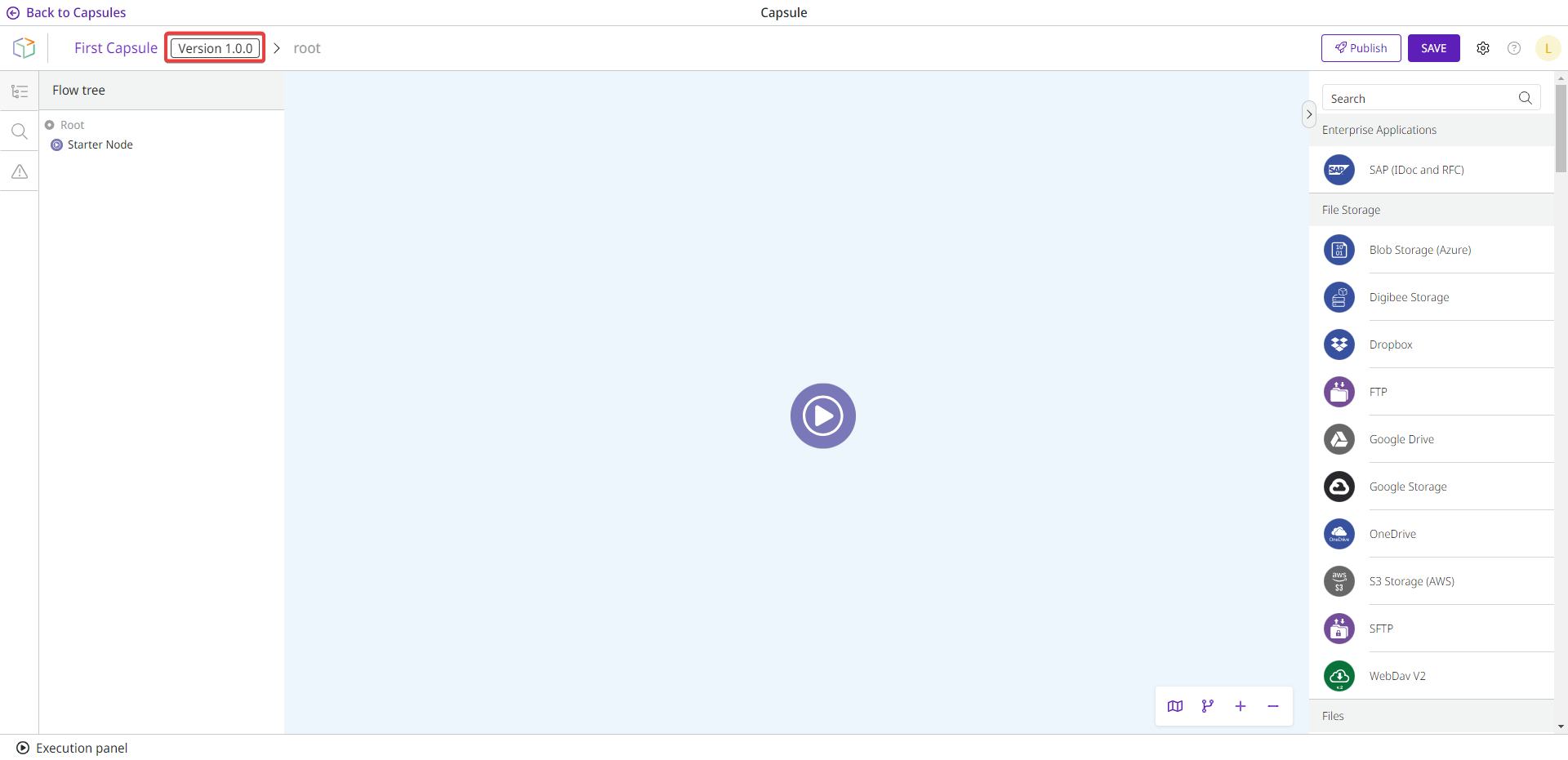
The version number is displayed next to the Capsule name.
## Version diff viewer (Visual comparison of capsules)
A major change in a Capsule can affect dozens of dependent pipelines. To facilitate troubleshooting and code review, the Version Diff tool allows you to compare two published versions of a Capsule, side-by-side.
1. Access the **Build** page, go to the **Capsules** tab, and locate the capsule you wish to compare versions.
2. In the three-dot menu, select **Open version diff**.
{% hint style="info" %}
This option is only available for published capsules.
{% endhint %}
3. Select the capsules versions you wish to compare:
* The latest version appears on the left side.
* The previous version appears on the right side.
Capsules in development (unpublished) are also available as selectable options.
4. Click on individual steps to view changes in configurations. Added or removed steps are color-coded: green for additions, red for removals and yellow for modifications.
Each individual step displays capsule configuration changes, according to each tab on the top of the page:
* **Flow:** Shows modifications in the steps of the flow.
* **Configuration:** Shows parameter changes for each connector in the flow.
* **Output:** Highlights added/removed fields, type changes, and required-field changes on the JSON Schema.
* **Documentation:** Shows text modifications of the internal documentation content maintained by the Capsule builder.
---
# Agent Instructions
This documentation is published with GitBook. GitBook is the documentation platform designed so that both humans and AI agents can read, navigate, and reason over technical content effectively. Learn more at gitbook.com.
## Querying This Documentation
If you need additional information that is not directly available in this page, you can query the documentation dynamically by asking a question.
Perform an HTTP GET request on the current page URL with the `ask` query parameter, and the optional `goal` query parameter:
```
GET https://docs.digibee.com/documentation/developer-guide/development-cycle/build-overview/capsulas/capsules-versioning.md?ask=&goal=
```
`ask` is the immediate question: it should be specific, self-contained, and written in natural language.
`goal` is optional and describes the broader end goal you are ultimately trying to accomplish on behalf of the user. GitBook uses it to tailor the answer towards what is most useful for that goal.
The response will contain a direct answer to the question and relevant excerpts and sources from the documentation.
Use this mechanism when the answer is not explicitly present in the current page, you need clarification or additional context, or you want to retrieve related documentation sections.