> For the complete documentation index, see [llms.txt](https://docs.digibee.com/documentation/llms.txt). Markdown versions of documentation pages are available by appending `.md` to page URLs; this page is available as [Markdown](https://docs.digibee.com/documentation/developer-guide/connectivity-management/ztna/ztna-groups.md).
# ZTNA Groups
Learn how to create ZTNA groups for your Edge Routers.
**ZTNA groups** are a way to categorize and associate your Edge Routers into specific categories of your choosing. This helps you segregate Edge Router communication and more easily manage the destination of your ZTNA connections.
For example, a group named `prod-onpremise` defined by a user will only consist of Edge Routers on the Production environment that are hosted in an on-premise infrastructure.
When creating a new Edge Router on the **Connectivity** page of the Digibee Integration Platform, you can create a custom group to segregate your Edge Routers. Each group can have an unlimited number of Edge Routers and each Route will be associated with the Edge Routers across the groups.
## View groups
To view your created groups:
1. Click the **Connectivity** button on the top right corner of the Platform’s home page.
2. The Connectivity page opens on the **Edge Router** tab. In this tab, you can view:
* The name of the Edge Router
* Whether the Edge Router has an inverse flow
* **The Edge Router group**
* Whether the Edge Router is online
* The status of the Edge Router
* Whether the Edge Router is registered
* Actions that can be performed
## Create groups
You can create groups in two ways:
### Creating a group when creating a new Edge Router
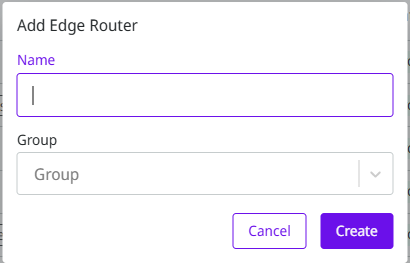
1. Click the **Create Edge Router** button on the **Connectivity** page.
2. Enter the name for the Edge Router.
3. Choose a name to associate the Edge Router with.
4. If you want to add the new Edge Router to an existing group, type the name of the desired group.
5. Click **Save**.
### Adding a group to an existing Edge Router
To modify which group an Edge Router belongs to:
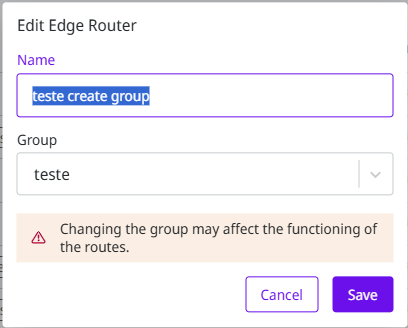
1. Click the **Edit** **icon** of the selected Edge Router.
2. Enter the name of the new group or select an existing group to associate with the Edge Router.
3. Click **Save**.
A group can only exist if it’s associated with an Edge Router. Otherwise, this group is automatically deleted.
### Naming groups
To name Edge Router groups, use lowercase letters and avoid spaces. You can use hyphens to separate words. For example: `prod-gcp` or `test-devs`.
## Routes associated with an Edge Router
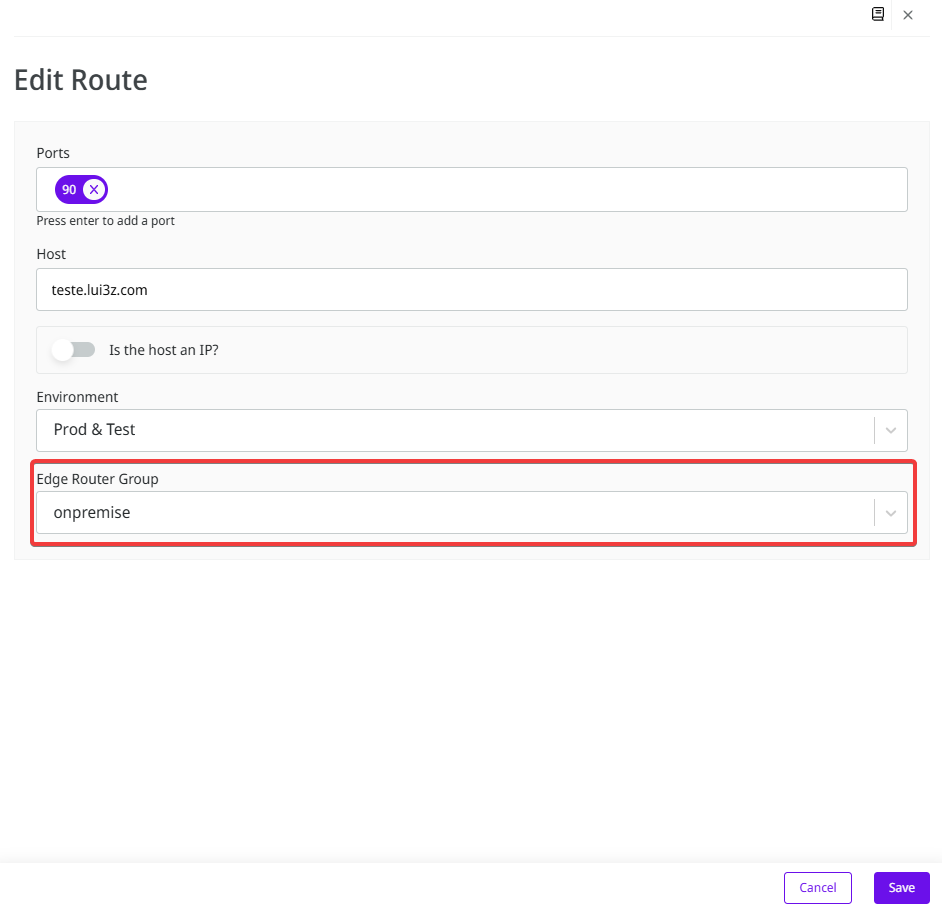
To create a Route, you need to associate it with an Edge Router, which in turn is associated with a group. When modifying an Edge Router's group, remember to also change the group that the Edge Router is associated with.
1. Click the **Route**s tab.
2. Click the **Edit** icon of the selected Route.
3. On **Edge Router Group**, select the desired group.
4. Click **Save**.
## Inverse flow
When creating an Inverse Route to create an Inverse Flow, an Edge Router is instantly created on the Digibee side. This Edge Router is automatically associated with a group called **Inverse**, which cannot be modified.
[Read the documentation to learn more about Inverse Flow.](/documentation/developer-guide/connectivity-management/ztna/ztna-inverse-flow.md)
## FAQs
I created my Routes and my Edge Routers before this feature was released. Will this harm my current connections?
Existing connections are not harmed by the creation of this feature. They are sent to the corresponding groups according to the environments that were previously defined. For example, Edge Routers created in the Prod environment are now part of the `prod` group.
You can choose to keep the groups as they are or you can create new groups and segregate the Edge Routers and Routes within them.
---
# Agent Instructions
This documentation is published with GitBook. GitBook is the documentation platform designed so that both humans and AI agents can read, navigate, and reason over technical content effectively. Learn more at gitbook.com.
## Querying This Documentation
If you need additional information that is not directly available in this page, you can query the documentation dynamically by asking a question.
Perform an HTTP GET request on the current page URL with the `ask` query parameter, and the optional `goal` query parameter:
```
GET https://docs.digibee.com/documentation/developer-guide/connectivity-management/ztna/ztna-groups.md?ask=&goal=
```
`ask` is the immediate question: it should be specific, self-contained, and written in natural language.
`goal` is optional and describes the broader end goal you are ultimately trying to accomplish on behalf of the user. GitBook uses it to tailor the answer towards what is most useful for that goal.
The response will contain a direct answer to the question and relevant excerpts and sources from the documentation.
Use this mechanism when the answer is not explicitly present in the current page, you need clarification or additional context, or you want to retrieve related documentation sections.