> For the complete documentation index, see [llms.txt](https://docs.digibee.com/documentation/llms.txt). Markdown versions of documentation pages are available by appending `.md` to page URLs; this page is available as [Markdown](https://docs.digibee.com/documentation/developer-guide/platform-administration/administration/organization-groups.md).
# Organization groups
{% hint style="info" %}
**This feature needs to be enabled upon request to be available on Digibee Integration Platform**. If your company has multiple realms and you are interested in activating this feature, please [contact the Digibee support team](/documentation/troubleshooting/help-and-faq/support.md).
{% endhint %}
Information hierarchy plays a vital role in making information accessible, understandable, and actionable for users. The **Organization groups** are a management feature that helps multi-realm customers manage multiple realms more easily and autonomously.
## How the Organization groups work
Users with the **`ORG:MANAGER`** permission will have access to the **Organization management** page. In this page, they can add other users to the organization groups, allowing the newly added users to browse any company realm with the permissions of their initial realm.
For example, if the user is a **manager**, they will be able to browse all the realms with **manager permissions**. However, if they are a **viewer**, they will only be able to browse the realms with **viewer permissions**.
## How to add users to Organization groups
First, you should open a chat with the Digibee Support Team to request `ORG:MANAGER` permission for a selected person in your organization. After the person receives the permission, they can follow these steps on the Digibee Integration Platform:
1. On the Platform home page, click **Administration** in the upper right corner.
2. Find the section called **Organization** in the menu on the left. Click **Organization groups**.
3. A page opens displaying the group name, number of members, and an edit icon. Click the **edit icon** to add new users or make changes.
4. Select the realm where you want to add an **Organization manager**. Once selected, the email list of users with access to that realm will appear.
5. Choose the user you want to assign as an **Organization manager**.
6. Click the **Add user** button.
## Organization reports
**Organization reports** show details for all pipelines (deployed and undeployed) and every deployment within the realm. These reports can be generated daily using an API Key entered in [Postman](https://www.postman.com/) or other API tools.
{% hint style="info" %}
It’s not possible to download retroactive reports. Only the report generated for the day is available for download. Reports will only be created from April 7th, 2025, the feature release date.
{% endhint %}
These reports can be used for auditing purposes, managing an organization's realms, and analyzing consumption by realm. You can view the report information in CSV or JSON.
The reports detail the following information:
**Deployment reports**
* Realm
* Project
* Pipeline name
* Pipeline Id
* Version
* Size
* Concurrent executions
* Autoscaling
* Min. replicas
* Max. replicas
* Target of replicas
* Environment
* User email
* Trigger name
* Last deploy
**Pipeline reports**
* Realm
* Project
* Pipeline name
* Pipeline Id
* Version
* Trigger name
* Created at
* Last Modified
### How to generate organization reports using API tools
{% hint style="info" %}
Only users with the `ORG:MANAGER` permission can generate organization reports. Reports can only be generated using a credential created in one of the company's realms.
{% endhint %}
#### Step 1: Create the API Key
To generate the report, you must first create an API credential that must be associated with the organization report.
1. On the Digibee Integration Platform, click **Settings.**
2. In the left menu, click **Credentials** under Digibee API.
3. Follow the steps in the form:
1. Create a username and password.
2. Select the **Organization reports** option.
3. Click **Save credentials**.
4. Copy the generated API Key.
#### Step 2: Use the API Key to generate the report
1. Log in to your preferred API tool.
2. In the **Authorization** tab, select the **Basic Auth** option under **Auth Type**.
3. Enter the username and password created on the Digibee Integration Platform.
4. Select the **Headers** tab and paste the **API Key** generated on the Digibee Integration Platform.
5. On the **Params** tab, under the **Query Parameters** section, select the format: `JSON` or `CSV`. Include the date as well.
6. On the **Params** tab, under the **Path Variables** section, include the `realm` and `reportType` parameters.
When creating the username on the Digibee Integration Platform, the `realm` name is automatically added to the username. For example: `realmtest-user-digibee`, where `realmtest` is the realm name and `user-digibee` is the username.
The reports provide information for the entire organization. However, for security reasons, the user must specify the realm in which the credential was created, as it’s required for validation purposes.
## Organization groups on Digibeectl
{% hint style="info" %}
If you have not yet set up any accounts for use with digibeectl, first check out the [digibeectl installation documentation](/documentation/developer-guide/development-cycle/digibeectl/getting-started.md)
{% endhint %}
To manage multiple realms via Digibeectl, users with the `ORG:MANAGER` permission must create new tokens for the desired accounts. Tokens must be created in the user's realm of origin (where the user was created and logs in).
### How to create a new token
1. On the home page of the Digibee Integration Platform, click the **Settings** button in the upper-right corner of the page.
2. In the menu on the left side of the page, click **Digibeectl**.
3. The page will display all previously created tokens. Click the **Create** button in the upper-right corner of the page.
4. Enter the required information.
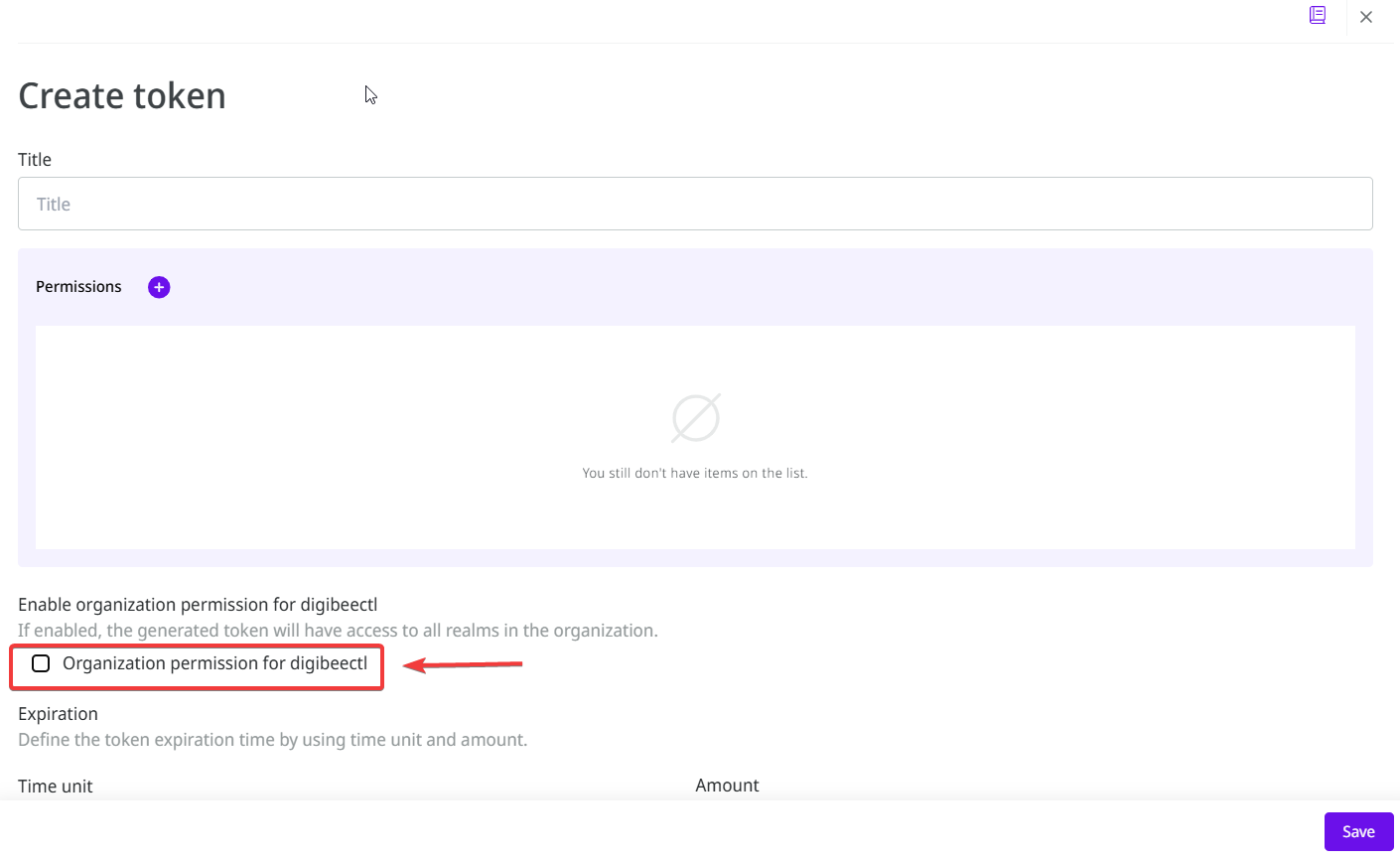
5. To allow the newly generated token to access all realms in the organization, select the **Organization permission for Digibeectl** option.
6. Click the **Save** button.
{% hint style="info" %}
Tokens previously configured for use in Digibeectl **will not be changed**. They will continue to function normally.
{% endhint %}
---
# Agent Instructions
This documentation is published with GitBook. GitBook is the documentation platform designed so that both humans and AI agents can read, navigate, and reason over technical content effectively. Learn more at gitbook.com.
## Querying This Documentation
If you need additional information that is not directly available in this page, you can query the documentation dynamically by asking a question.
Perform an HTTP GET request on the current page URL with the `ask` query parameter, and the optional `goal` query parameter:
```
GET https://docs.digibee.com/documentation/developer-guide/platform-administration/administration/organization-groups.md?ask=&goal=
```
`ask` is the immediate question: it should be specific, self-contained, and written in natural language.
`goal` is optional and describes the broader end goal you are ultimately trying to accomplish on behalf of the user. GitBook uses it to tailor the answer towards what is most useful for that goal.
The response will contain a direct answer to the question and relevant excerpts and sources from the documentation.
Use this mechanism when the answer is not explicitly present in the current page, you need clarification or additional context, or you want to retrieve related documentation sections.
.png)
.png)