# Accounts
## **Overview**
Accounts provide a secure way to store sensitive information, such as passwords, private keys, and authentication tokens, without exposing these credentials directly in your integrations. By encrypting and centrally managing credentials, accounts help ensure the security of authentication processes.
Furthermore, accounts can be restricted to specific projects, ensuring that sensitive information is only accessible where it is needed. They can then be used in connectors within pipelines and capsules to authenticate and authorize access to external endpoints.
## **Managing accounts**
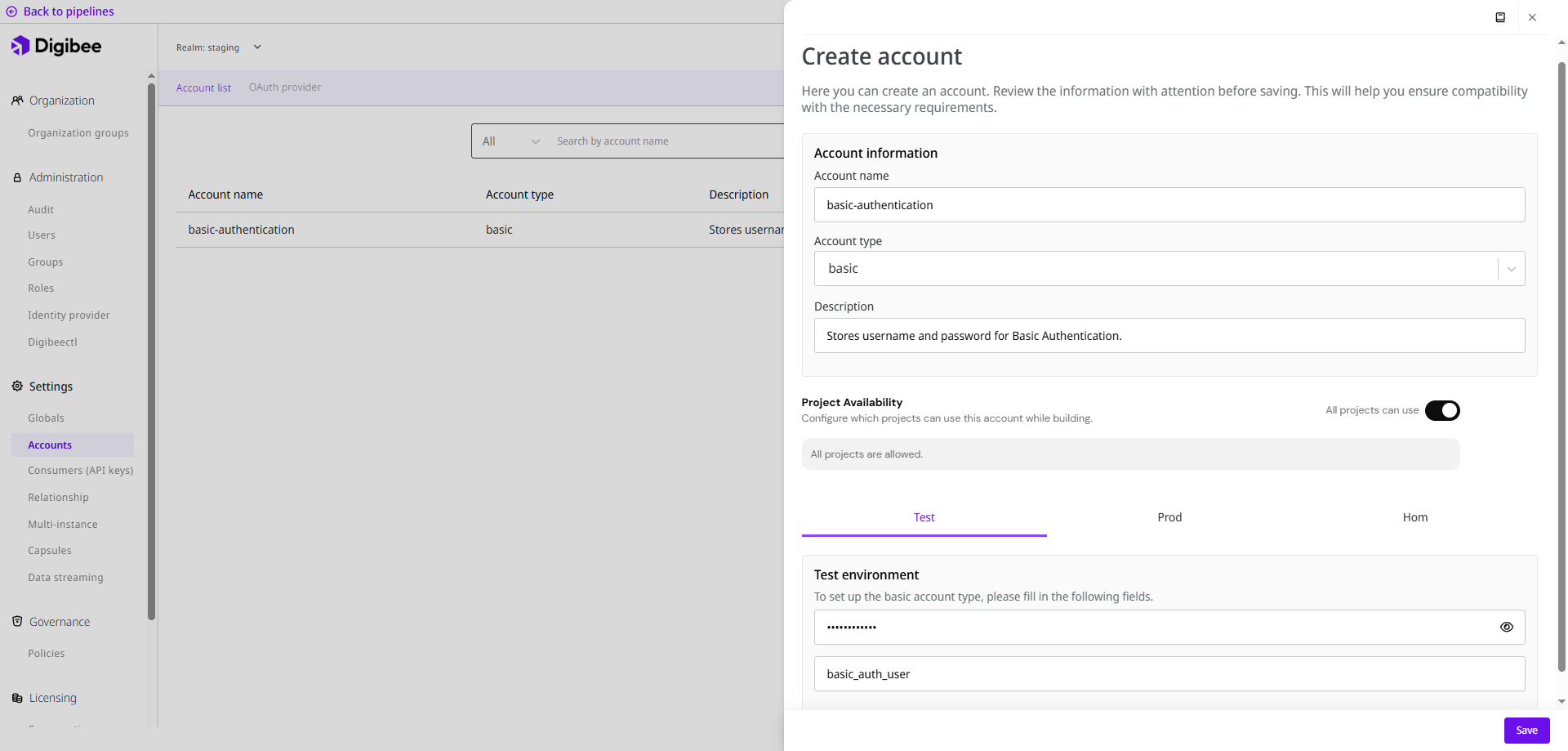
Configuration page for adding a new account in the Platform.
### **Creating an account**
1. On the Build page, click the **Accounts** tab.
1. Alternatively, click **Settings** in the upper-right corner of the Platform home page and select **Accounts** on the next page.
2. Click **Create** and fill in the fields:
* **Name**: Identifier for the account.
* **Account type**: Choose from the available options.
* **Description**: Additional information about the account.
* **Project Availability**: Define if the account can be used in all projects or only in selected ones. On the Accounts listing page, you will only see accounts that are available to all projects or the ones you have permission to access.
{% hint style="danger" %}
#### **Accounts can be permanently removed from pipelines**
Pipelines can only use Accounts that are available in their project. An Account is **removed from a pipeline** in the following situations:
* When a pipeline is moved to another project and the Account is not allowed in the destination project.
* When the **Project Availability** setting of an Account is updated and the project that contains the pipeline is removed from the allowed list.
Once an Account is removed in any of these situations, moving the pipeline back or allowing the project again **won't restore it**, for security reasons. In such cases, you must manually add each Account to the pipeline again.
{% endhint %}
* **Environment configuration:** Credentials required for the selected account type. See below how to configure each account type.
* **Expiration date**: Enter in **DD/MM/YYYY** format (for example, *30/05/2030*). Accounts close to expiration show **Expires in DD/MM**; expired accounts show **Expired**. When the date matches the external service, the account stops working until you update the credentials and redeploy the pipelines. You can also filter accounts by **Close to expiring** or **Expired**. This field is optional and only applies to **OAuth Bearer, Private Key, Public Key, OAuth 2, Certificate Chain, Google Key, AWS V4**.
3. Click **Save** to create the account.
### **Configuring each account type**
API Key
**Description**\
Used when an endpoint requires an API Key.
{% hint style="info" %}
Example of connector that supports this account type includes:
* [**REST V2**](https://app.gitbook.com/s/EKM2LD3uNAckQgy1OUyZ/connectors/web-protocols/rest-v2)
If a connector supports this account type, it will be indicated in the **Accounts** parameter in its documentation.
{% endhint %}
**Configuration parameters**
* **URL-PARAM-NAME:** Query parameter where the API Key is applied
* **API-KEY:** API Key value
**Expiration for authentication tokens**
The following providers set an expiration period for their authentication tokens. For this reason, it’s necessary to update the configurations of your accounts at the end of every period.
Expiration per provider:
* **Microsoft:** Every 3 months
* **Google:** Every 6 months
* **Mercado Livre:** Every 6 months
Basic
**Description**\
Authentication with username and password.
{% hint style="info" %}
Examples of connectors that support this account type include:
* [**DB V2**](https://app.gitbook.com/s/EKM2LD3uNAckQgy1OUyZ/connectors/structured-data/db-v2)
* [**SOAP V3**](https://app.gitbook.com/s/EKM2LD3uNAckQgy1OUyZ/connectors/web-protocols/soap-v3)
If a connector supports this account type, it will be indicated in the **Accounts** parameter in its documentation.
{% endhint %}
**Configuration parameters**
* **USERNAME:** User’s name
* **PASSWORD:** User’s password
Custom Auth Header
**Description**\
Used when an endpoint requires a custom authentication header.
{% hint style="info" %}
Examples of connectors that support this account type include:
* [**REST V2**](https://app.gitbook.com/s/EKM2LD3uNAckQgy1OUyZ/connectors/web-protocols/rest-v2)
* [**WGet (Download HTTP)**](https://app.gitbook.com/s/EKM2LD3uNAckQgy1OUyZ/connectors/web-protocols/wget)
If a connector supports this account type, it will be indicated in the **Accounts** parameter in its documentation.
{% endhint %}
**Configuration parameters**
* **HEADER-NAME:** Header name
* **HEADER-VALUE:** Header value
OAuth Bearer
**Description**\
Stores an OAuth token and assigns it to the **Authorization** header in requests.
{% hint style="info" %}
Examples of connectors that support this account type include:
* [**Slack**](https://app.gitbook.com/s/EKM2LD3uNAckQgy1OUyZ/connectors/enterprise-applications/slack)
* [**HubSpot: Sales and CMS**](https://app.gitbook.com/s/EKM2LD3uNAckQgy1OUyZ/connectors/industry-solutions/hubspot)
If a connector supports this account type, it will be indicated in the **Accounts** parameter in its documentation.
{% endhint %}
**Configuration parameters**
* **TOKEN:** OAuth token
Private Key
**Description**\
Stores a private key for authentication.
{% hint style="info" %}
Examples of connectors that support this account type include:
* [**RSA Cryptography**](https://app.gitbook.com/s/EKM2LD3uNAckQgy1OUyZ/connectors/security/rsa-cryptography)
* [**SFTP**](https://app.gitbook.com/s/EKM2LD3uNAckQgy1OUyZ/connectors/file-storage/sftp)
If a connector supports this account type, it will be indicated in the **Accounts** parameter in its documentation.
{% endhint %}
**Configuration parameters**
* **KEY:** Private key
* **PASSPHRASE:** Private key password
**Example of private key**
```textproto
-----BEGIN RSA PRIVATE KEY-----
MIICWwIBAAKBgF2duc4+xxNKlMO9bUud4bzGnuATkQVX3bM/gzxISrgw7B1AzJwA
OT5UChBoIKfmISaaVVY9+/fTpI1szihSqTyemdHnbC+FcDzoK3p53C5ZJ4pL7s+G
Y7vGEa2Z/6JVder6dwJaaOtwf+DfZYiWQjvh8tfAVjVdONE/XZSxOOofAgMBAAEC
-----END RSA PRIVATE KEY-----
```
Public Key
**Description**\
Stores a public key for authentication with public-private key pairs.
{% hint style="info" %}
Examples of connectors that support this account type include:
* [**Digital Signature**](https://app.gitbook.com/s/EKM2LD3uNAckQgy1OUyZ/connectors/security/digital-signature)
* [**RSA Cryptography**](https://app.gitbook.com/s/EKM2LD3uNAckQgy1OUyZ/connectors/security/rsa-cryptography)
If a connector supports this account type, it will be indicated in the **Accounts** parameter in its documentation.
{% endhint %}
**Configuration parameters**
* **KEY:** Public key
**Example of public key**
```textproto
-----BEGIN PUBLIC KEY-----
MIGeMA0GCSqGSIb3DQEBAQUAA4GMADCBiAKBgF2duc4+xxNKlMO9bUud4bzGnuAT
kQVX3bM/gzxISrgw7B1AzJwAOT5UChBoIKfmISaaVVY9+/fTpI1szihSqTyemdHn
-----END PUBLIC KEY-----
```
OAuth 2
**Description**\
Used for services that support OAuth 2.0 authorization (such as Google or Microsoft). It provides delegated access to resources without exposing user credentials.
{% hint style="info" %}
Examples of connectors that support this account type include:
* [**HubSpot: Sales and CMS**](https://app.gitbook.com/s/EKM2LD3uNAckQgy1OUyZ/connectors/industry-solutions/hubspot)
* [**REST V2**](https://app.gitbook.com/s/EKM2LD3uNAckQgy1OUyZ/connectors/web-protocols/rest-v2)
If a connector supports this account type, it will be indicated in the **Accounts** parameter in its documentation.
{% endhint %}
**Configuration parameters**
* **PROVIDER:** OAuth provider
* **SCOPES:** OAuth access scopes
{% hint style="info" %}
If a custom OAuth2 provider uses a configured certificate, a password is required. This password must match the one used when uploading the certificate. For setup details, see the [OAuth2 providers documentation](https://docs.digibee.com/documentation/developer-guide/platform-administration/settings/accounts/new-oauth2-architecture/registration-of-new-oauth-providers).
{% endhint %}
**Supported providers**
* **Microsoft:** The "offline\_access" scope is mandatory on the Digibee Integration Platform. It is important to remember that this provider accepts only personal accounts.
* **Google**
* **Mercado Livre**
OAuth 1
**Description**
OAuth 1 is an authentication method that enables secure communication between applications without sharing user credentials. In this case, the tokens are generated directly in the platform you want to connect to, such as NetSuite. There’s no need to log in through an external provider like Google.
{% hint style="info" %}
Only the [**Oracle Netsuite**](https://app.gitbook.com/s/EKM2LD3uNAckQgy1OUyZ/connectors/industry-solutions/oracle-netsuite) connector supports this account type.
{% endhint %}
**Configuration parameters**
* **OAUTH\_TOKEN:** The access token generated in the platform (for example, in NetSuite) that identifies the integration user.
* **REALM:** The account identifier or domain within the platform where the integration is performed. In NetSuite, this value usually corresponds to the account ID.
* **OAUTH\_TOKEN\_SECRET:** The secret key associated with the access token. It’s also generated in the platform and used together with the token to authenticate requests securely.
Certificate Chain
**Description**\
Specifies a chain of certificates for endpoints requiring 2-way SSL authentication or client certificates. Certificates must be in PEM format and in the correct order.
{% hint style="info" %}
Examples of connectors that support this account type include:
* [**CMS**](https://app.gitbook.com/s/EKM2LD3uNAckQgy1OUyZ/connectors/security/cms)
* [**MongoDB**](https://app.gitbook.com/s/EKM2LD3uNAckQgy1OUyZ/connectors/structured-data/mongodb)
If a connector supports this account type, it will be indicated in the **Accounts** parameter in its documentation.
{% endhint %}
**Configuration parameters**
* **CHAIN:** Complete certificate chain
* **PASSWORD:** Private key password (if required)
* **EXPIRATION DATE:** Certificate expiration date
**Example conversion with OpenSSL**
```shell
openssl pkcs12 -in mycert_xpto.p12 -out myapp.pem
```
**Example of certificate chain**
```textproto
-----BEGIN CERTIFICATE-----
MIIEUTCCAzmgAwIBAgIBATANBgkqhkiG9w0BAQUFADBSMQswCQYDVQQGEwJVUzEj
-----END CERTIFICATE-----
-----BEGIN CERTIFICATE-----
MIIEUTCCAAGVDSHVEbjhdbhjsjeiejAQUFADBSMQswCQYDVQQGEwJVUzEj
-----END CERTIFICATE-----
-----BEGIN RSA PRIVATE KEY-----
MIICWwIBAAKBgF2duc4+xxNKlMO9bUud4bzGnuATkQVX3bM/gzxISrgw7B1AzJwA
-----END RSA PRIVATE KEY-----
```
Secret Key
**Description**\
Used by encryption connectors.
{% hint style="info" %}
Example of connector that supports this account type includes:
* [**Orderful**](https://app.gitbook.com/s/EKM2LD3uNAckQgy1OUyZ/connectors/industry-solutions/orderful)
If a connector supports this account type, it will be indicated in the **Accounts** parameter in its documentation.
{% endhint %}
**Configuration parameters**
* **KEY:** Secret key
Google Key
**Description**\
Service key for accessing Google APIs.
{% hint style="info" %}
Examples of connectors that support this account type include:
* [**REST V2**](https://app.gitbook.com/s/EKM2LD3uNAckQgy1OUyZ/connectors/web-protocols/rest-v2)
* [**Google Cloud Functions**](https://app.gitbook.com/s/EKM2LD3uNAckQgy1OUyZ/connectors/google-gcp/cloud-functions)
If a connector supports this account type, it will be indicated in the **Accounts** parameter in its documentation.
{% endhint %}
**Configuration parameters**
* **KEY:** Google key
* **SCOPES:** Comma-separated API access scopes. See [Google scopes](https://developers.google.com/identity/protocols/oauth2/scopes).
**Example of Google key**
```json
{
"type": "service_account",
"project_id": "project_id",
"private_key_id": "dfdsfrfr43r43r4refbcceceabf8055a12a",
"private_key": "-----BEGIN PRIVATE KEY-----\n-----END PRIVATE KEY-----\n",
"client_email": "user@DOMAIN.iam.gserviceaccount.com",
"client_id": "123456576788888899",
"auth_uri": "https://accounts.google.com/o/oauth2/auth",
"token_uri": "https://accounts.google.com/o/oauth2/token",
"auth_provider_x509_cert_url": "https://www.googleapis.com/oauth2/v1/certs",
"client_x509_cert_url": "https://www.googleapis.com/robot/v1/metadata/x509/storage%40project.iam.gserviceaccount.com"
}
```
Kerberos
**Description**\
Stores Keytab for authentication in Kerberos environments.
{% hint style="info" %}
Examples of connectors that support this account type include:
* [**DB V2**](https://app.gitbook.com/s/EKM2LD3uNAckQgy1OUyZ/connectors/structured-data/db-v2)
* [**Stream DB V3**](https://app.gitbook.com/s/EKM2LD3uNAckQgy1OUyZ/connectors/structured-data/stream-db-v3)
If a connector supports this account type, it will be indicated in the **Accounts** parameter in its documentation.
{% endhint %}
**Configuration parameters**
* **KEYTAB:** Base64-encoded Keytab file
* **PRINCIPAL:** User associated with the Keytab (for example, user\@DOMAIN)
AWS V4
**Description**\
Used to authenticate requests to AWS services with Signature Version 4.
{% hint style="info" %}
Examples of connectors that support this account type include:
* [**AWS Security Token Service (STS)**](https://app.gitbook.com/s/EKM2LD3uNAckQgy1OUyZ/connectors/aws/sts)
* [**DynamoDB**](https://app.gitbook.com/s/EKM2LD3uNAckQgy1OUyZ/connectors/structured-data/dynamodb)
If a connector supports this account type, it will be indicated in the **Accounts** parameter in its documentation.
{% endhint %}
**Configuration parameters**
* **SERVICE-NAME:** AWS service (for example, S3, SQS)
* **ACCESS-KEY:** AWS access key
* **SECRET-KEY:** AWS secret key
* **SESSION-TOKEN:** Temporary session token (if applicable)
* **REGION:** Execution region
AWS Role
**Description**\
Grants an AWS user temporary access to a specific role created in AWS. To use this feature, an **AWS V4** account must be configured.
Once both account types are configured correctly, they can be used together in connectors that support the **Assume role** feature.
{% hint style="info" %}
Only the [**DynamoDB**](https://app.gitbook.com/s/EKM2LD3uNAckQgy1OUyZ/connectors/structured-data/dynamodb) connector supports this feature.
{% endhint %}
**Configuration parameters**
* **ROLE-ARN:** Amazon Resource Name of the role
* **ROLE-SESSION-NAME:** Identifier for the assume role session
* **EXTERNAL-ID:** Optional identifier for cross-account operations
**Usage example**
Suppose you are using the **DynamoDB** connector and you want a specific user to access a database to retrieve some data. You don’t want this user to always have access to this database or to perform any other operations on it. In this case, you can configure a role in AWS and allow the user to temporarily assume this role to retrieve the necessary data from the database.
To achieve this, select the **AWS V4** account you want to use in the **DynamoDB** connector and activate the **Use Assume Role** parameter on the **Authentication** tab. When this option is active, you can select the **AWS Role** account that grants the user permission to perform the desired operation.
{% hint style="warning" %}
Within AWS, you must configure the AWS users who can access the role. If this configuration is not set correctly, the user of the selected **AWS V4** account won’t be able to assume the role, even if both the **AWS V4** and **AWS Role** accounts are selected in the connector.
{% endhint %}
OAuth Provider
**Description**\
Authorization via OAuth, supported only by the [Salesforce](https://app.gitbook.com/s/EKM2LD3uNAckQgy1OUyZ/connectors/enterprise-applications/salesforce) connector.
{% hint style="info" %}
Examples of connectors that support this account type include:
* [**Marketo**](https://app.gitbook.com/s/EKM2LD3uNAckQgy1OUyZ/connectors/industry-solutions/marketo)
* [**Salesforce**](https://app.gitbook.com/s/EKM2LD3uNAckQgy1OUyZ/connectors/enterprise-applications/salesforce)
If a connector supports this account type, it will be indicated in the **Accounts** parameter in its documentation.
{% endhint %}
**Configuration parameters**
* **CLIENT-ID:** Application identifier
* **CLIENT-SECRET:** Application secret
SMTP Auth and Properties
**Description**\
Configures SMTP credentials for sending emails with the Mail Connector.
{% hint style="info" %}
Example of connector that support this account type include:
* [**Store Account**](https://app.gitbook.com/s/EKM2LD3uNAckQgy1OUyZ/connectors/tools/store-account) (for storing data dynamically)
If a connector supports this account type, it will be indicated in the **Accounts** parameter in its documentation.
{% endhint %}
**Configuration parameters**
* **HOST:** SMTP server host
* **PORT:** SMTP server port
* **USERNAME:** Email address
* **PASSWORD:** Email password
* **STARTTLS\_ENABLE:** “true” or “false” for SSL access
* **AUTH:** Authentication type
NTLM
**Description**\
Microsoft security protocol suite for authentication, integrity, and confidentiality. Supported via the [**SOAP V3**](https://app.gitbook.com/s/EKM2LD3uNAckQgy1OUyZ/connectors/web-protocols/soap-v3) connector.
{% hint style="danger" %}
NTLM uses outdated encryption algorithms (DES, RC4) with known vulnerabilities. Replace with **Kerberos** whenever possible and implement stricter security policies.
{% endhint %}
**Configuration parameters**
* **USERNAME:** User’s name
* **PASSWORD:** User’s password
* **DOMAIN (optional):** Domain name
* **HOSTNAME (optional):** Host name
Azure Key
**Description**\
Used to connect to **Azure Key Vault**. Keys can be found in the **Default Directory** under **App Registrations**:
* **CLIENT-ID** and **TENANT-ID** in **Overview**
* **CLIENT-SECRET** in **Certificates & secrets**
{% hint style="info" %}
Examples of connectors that support this account type include:
* [**Azure Key Vault**](https://app.gitbook.com/s/EKM2LD3uNAckQgy1OUyZ/connectors/azure/key-vault)
* [**Email V2**](https://app.gitbook.com/s/EKM2LD3uNAckQgy1OUyZ/connectors/web-protocols/email-v2)
If a connector supports this account type, it will be indicated in the **Accounts** parameter in its documentation.
{% endhint %}
**Configuration parameters**
* **CLIENT-SECRET:** Client secret
* **CLIENT-ID:** Application (client) ID
* **TENANT-ID:** Directory (tenant) ID
### **Editing an account**
To edit an account, go to the **Accounts** page and click the **pencil icon** in the **Actions** menu.
You can:
* Update the description.
* Mark the account as deprecated. [Learn more about deprecating an account.](#deprecating-an-account)
* Define new rules for **Project Availability**.
* Update credentials for all environments. Sensitive credentials won’t be visible, but you can add new ones.
* View all pipelines that use the account. Note that if the account is edited, any deployed pipelines must be redeployed to apply the changes.
After editing the account, a confirmation window appears. Type “I want to edit the account” in the **Confirmation message** field and click **Edit**.
All changes are applied immediately to pipelines that use the account and have not yet been deployed.
### **Deprecating an account**
Deprecating an account makes it unavailable for new pipelines or new pipeline versions. Existing deployments will keep working unless redeployed.
To deprecate an account:
1. Open the **Accounts** page and click the **pencil icon** next to the account.
2. Enable the **Deprecated** toggle.
3. Click **Save**.
{% hint style="danger" %}
This action is irreversible.
{% endhint %}
### **Deleting an account**
Deleting an account permanently removes it from the Platform. You cannot delete accounts that are currently used in pipelines, whether deployed or not. To proceed, remove or replace the account in all pipelines before deleting it.
To delete an account:
1. Open the **Accounts** page.
2. Click the **trash icon** next to the account.
3. Click **Delete** in the confirmation window.
### **Using accounts**
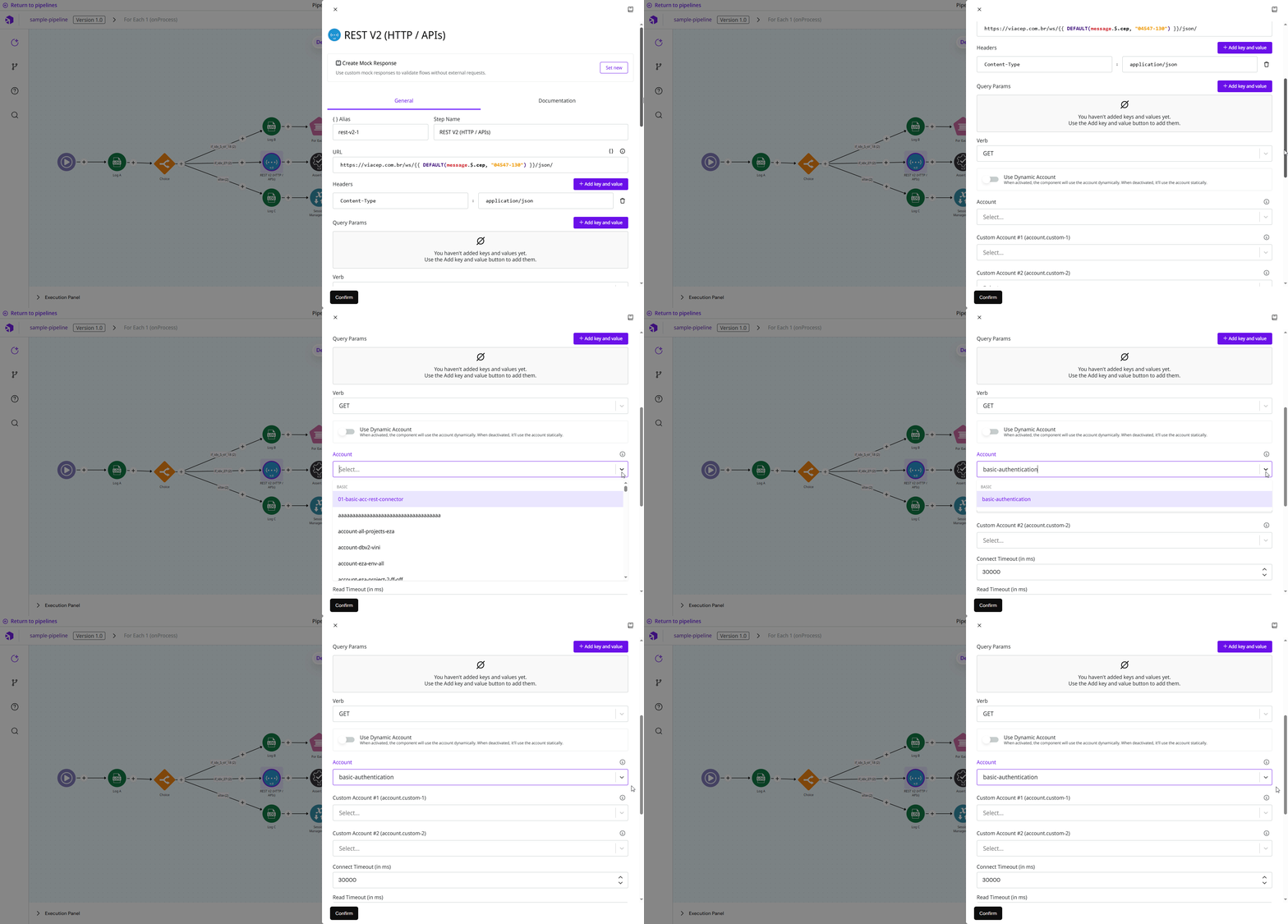
Accounts are used within **pipelines** and **capsules** to provide secure access to external services through connectors that support the **Account** field. When a connector requires an account, the **Account** field appears in its configuration form, allowing you to select the appropriate account for that integration.
{% hint style="info" %}
Accounts are only available in pipelines created within projects where they are allowed, so sensitive credentials stay within authorized projects.
{% endhint %}
Example of configuring a pipeline connector with account credentials.
---
# Agent Instructions: Querying This Documentation
If you need additional information that is not directly available in this page, you can query the documentation dynamically by asking a question.
Perform an HTTP GET request on the current page URL with the `ask` query parameter:
```
GET https://docs.digibee.com/documentation/developer-guide/platform-administration/settings/accounts.md?ask=
```
The question should be specific, self-contained, and written in natural language.
The response will contain a direct answer to the question and relevant excerpts and sources from the documentation.
Use this mechanism when the answer is not explicitly present in the current page, you need clarification or additional context, or you want to retrieve related documentation sections.