> For the complete documentation index, see [llms.txt](https://docs.digibee.com/documentation/llms.txt). Markdown versions of documentation pages are available by appending `.md` to page URLs; this page is available as [Markdown](https://docs.digibee.com/documentation/developer-guide/development-cycle/dashboards/alerts.md).
# Alerts
Learn how to use alerts to monitor your pipelines.
Alerts continuously monitor your pipelines and send you a notification when a pipeline metric falls out of a specified range. By setting up alerts, you can ensure that issues in your integration flows are quickly identified and resolved to reduce the risk of downtime or data loss
Access and permissions to Alerts
To access the Alerts page, your access group must include the **alert-manager** [system role](/documentation/developer-guide/platform-administration/administration/new-access-control/access-control-roles.md#system-roles). By default, this role is assigned to the **support**, **developers**, and **governance-manager** [groups](/documentation/developer-guide/platform-administration/administration/new-access-control/access-control-groups.md). If needed, you can manually add the role to any other access group.
The permissions needed to use the Alerts features are **ALERT:READ, ALERT:CREATE**, **ALERT:UPDATE**, and **ALERT:DELETE**. Learn more about the [permissions by service](/documentation/developer-guide/platform-administration/administration/new-access-control/access-control-roles/list-of-permissions-by-service.md).
## Alerts page
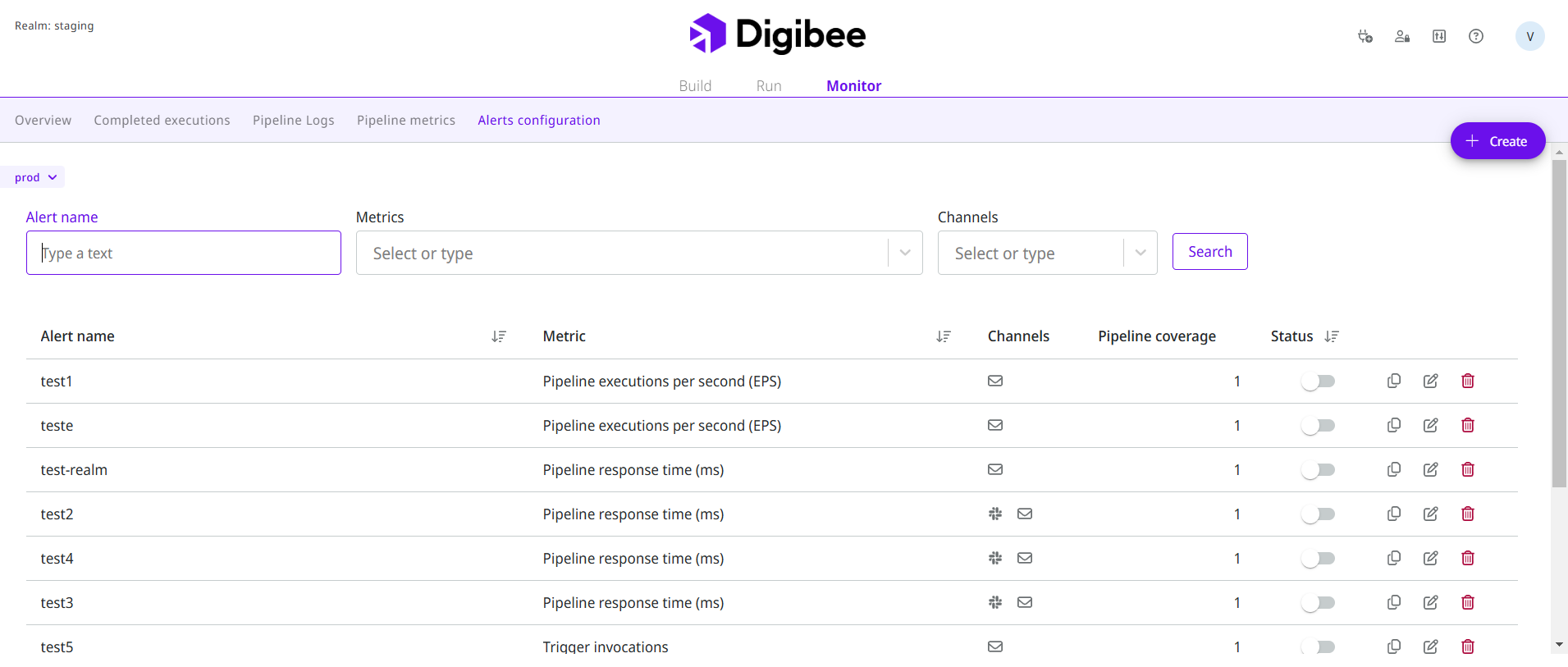
The Alerts page shows alerts created for a selected environment and displays a table with the following variables:
* **Alert name**: The name assigned to the alert.
* **Metrics:** The selected metrics that are monitored for the alert.
* **Channels**: The channels to receive the alert. They include email, Slack, Telegram, or Webhook.
* **Pipeline coverage**: The selected pipelines with the alert. If all pipelines in the realm are selected, they will be indicated with **All** in the table row.
* **Status**: The status of the alert. It can be deactivated (default) or activated.
* **Actions**: The actions to perform in the alert. They include **duplicate**, **edit**, or **delete**.
* **Sort icon**: The sort icon to sort the rows in ascending (A-Z) or descending (Z-A) order.
### Search for alerts
At the top of the page, you can find your alert by searching for:
* Alert name
* Metrics
* Alert channels
After entering the information, click **Search** to see the results.
### Metrics
Alert metrics help you ensure the reliability and performance of your pipelines. Check out the [Alert metrics documentation](/documentation/developer-guide/development-cycle/dashboards/alerts/available-metrics.md) to visualize the pipeline metrics that you can use to set up alerts.
### Actions
You can perform the following actions on the Alerts page:
* [Create an alert](/documentation/developer-guide/development-cycle/dashboards/alerts/how-to-create-an-alert.md)
* [Edit an alert](/documentation/developer-guide/development-cycle/dashboards/alerts/how-to-edit-an-alert.md)
* [Activate, deactivate or duplicate an alert](/documentation/developer-guide/development-cycle/dashboards/alerts/how-to-activate-deactivate-or-duplicate-an-alert.md)
* [Delete an alert](/documentation/developer-guide/development-cycle/dashboards/alerts/how-to-delete-an-alert.md)
* [Configure alerts on Slack](/documentation/developer-guide/development-cycle/dashboards/alerts/how-to-configure-alerts-on-slack.md)
* [Configure alerts on Telegram](/documentation/developer-guide/development-cycle/dashboards/alerts/how-to-configure-alerts-on-telegram.md)
* [Configure alerts through a Webhook](/documentation/developer-guide/development-cycle/dashboards/alerts/webhook.md)
## Alert use cases
To see real-world examples of how alerts can be used, visit our [Alerts use case documentation](/documentation/developer-guide/development-cycle/dashboards/alerts/use-cases-alerts.md) and discover practical ways to improve your monitoring.
---
# Agent Instructions
This documentation is published with GitBook. GitBook is the documentation platform designed so that both humans and AI agents can read, navigate, and reason over technical content effectively. Learn more at gitbook.com.
## Querying This Documentation
If you need additional information that is not directly available in this page, you can query the documentation dynamically by asking a question.
Perform an HTTP GET request on the current page URL with the `ask` query parameter, and the optional `goal` query parameter:
```
GET https://docs.digibee.com/documentation/developer-guide/development-cycle/dashboards/alerts.md?ask=&goal=
```
`ask` is the immediate question: it should be specific, self-contained, and written in natural language.
`goal` is optional and describes the broader end goal you are ultimately trying to accomplish on behalf of the user. GitBook uses it to tailor the answer towards what is most useful for that goal.
The response will contain a direct answer to the question and relevant excerpts and sources from the documentation.
Use this mechanism when the answer is not explicitly present in the current page, you need clarification or additional context, or you want to retrieve related documentation sections.