# Design and Inspect Mode

Canvas has two different modes: **Design** and **Inspect**. By default, it opens in **Design Mode**, where you create and edit on your flow. When you execute the flow, **Inspect Mode** is activated to help you trace the path of execution and see more information about each connector.

## **Design Mode**

Design Mode is where you do your work. In this mode you [configure the connectors and create the flow](https://docs.digibee.com/documentation/developer-guide/development-cycle/build-overview/pipelines/how-to-create-a-pipeline). While you are creating your flow and before you run the first execution, only the Design Mode is active.

## **Inspect Mode**

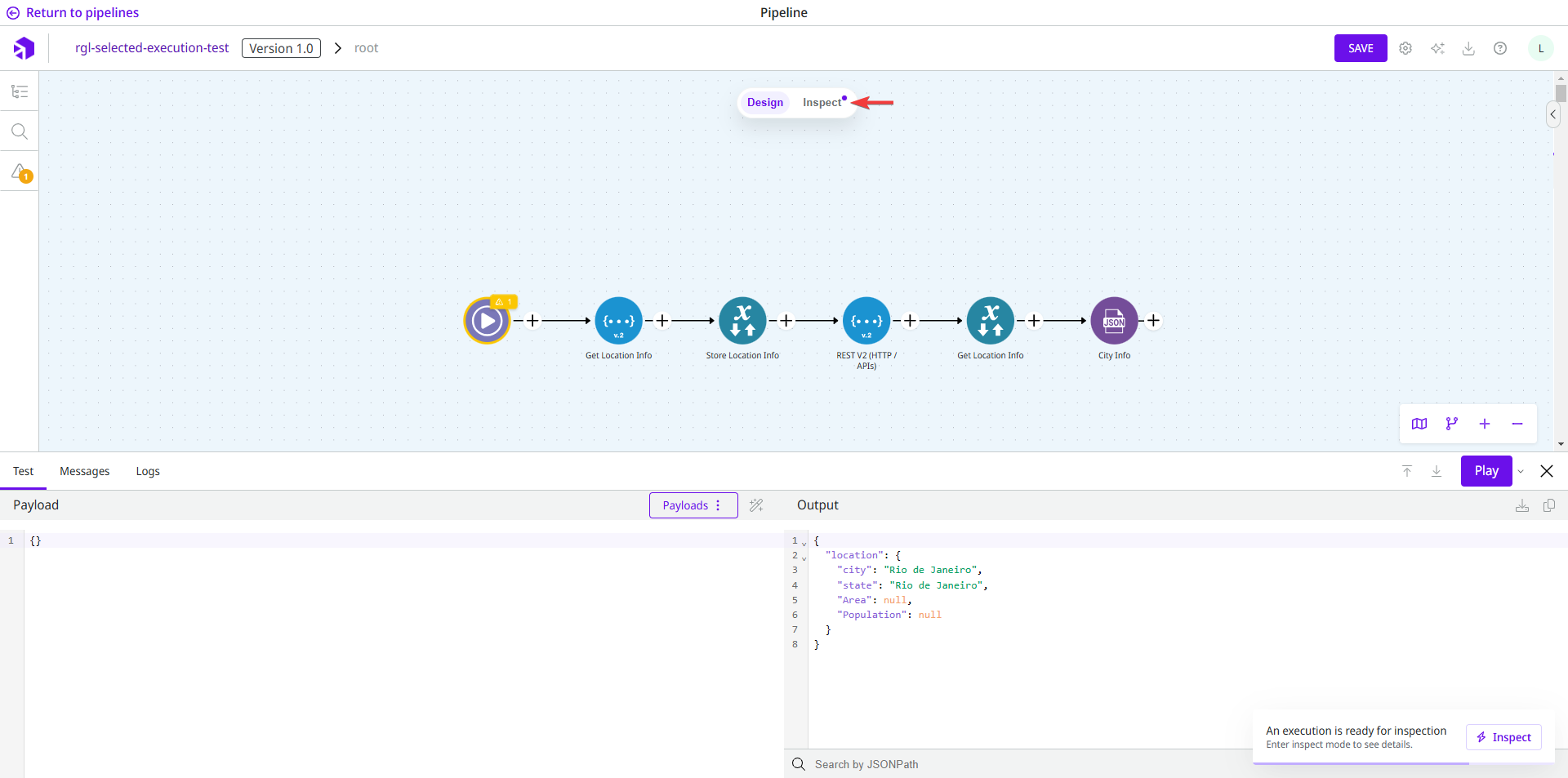
To activate the Inspect Mode, you must open the [Execution panel](https://docs.digibee.com/documentation/developer-guide/development-cycle/build-overview/canvas/execution-panel) in Design Mode and run the flow. The Inspect Mode is activated when messages are present in the execution. A notification is displayed on the page to let you know that an execution is ready for inspection.

{% hint style="warning" %}
Inspect Mode is not available if:

* The flow is not executed.
* No message was generated during execution or the number of messages is insufficient.
* The limit of 5000 messages has been reached. In this case, you can limit the number of loops or reduce the size of the pipeline.
  {% endhint %}

Once the flow has been executed, you must click the **Inspect** button at the top of the Canvas to enter Inspect Mode, as shown in the figure below.

<figure><img src="https://content.gitbook.com/content/jvO5S91EQURCEhbZOuuZ/blobs/3zrY7qW37MuvOZEF0KTr/Inspect%20mode.png" alt="Button to switch between design and debug mode."><figcaption><p>Button to access the Inspect Mode.</p></figcaption></figure>

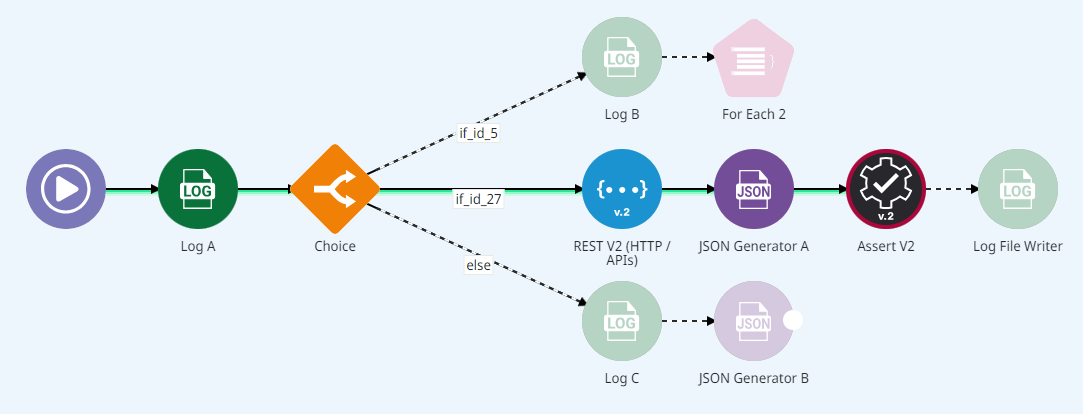
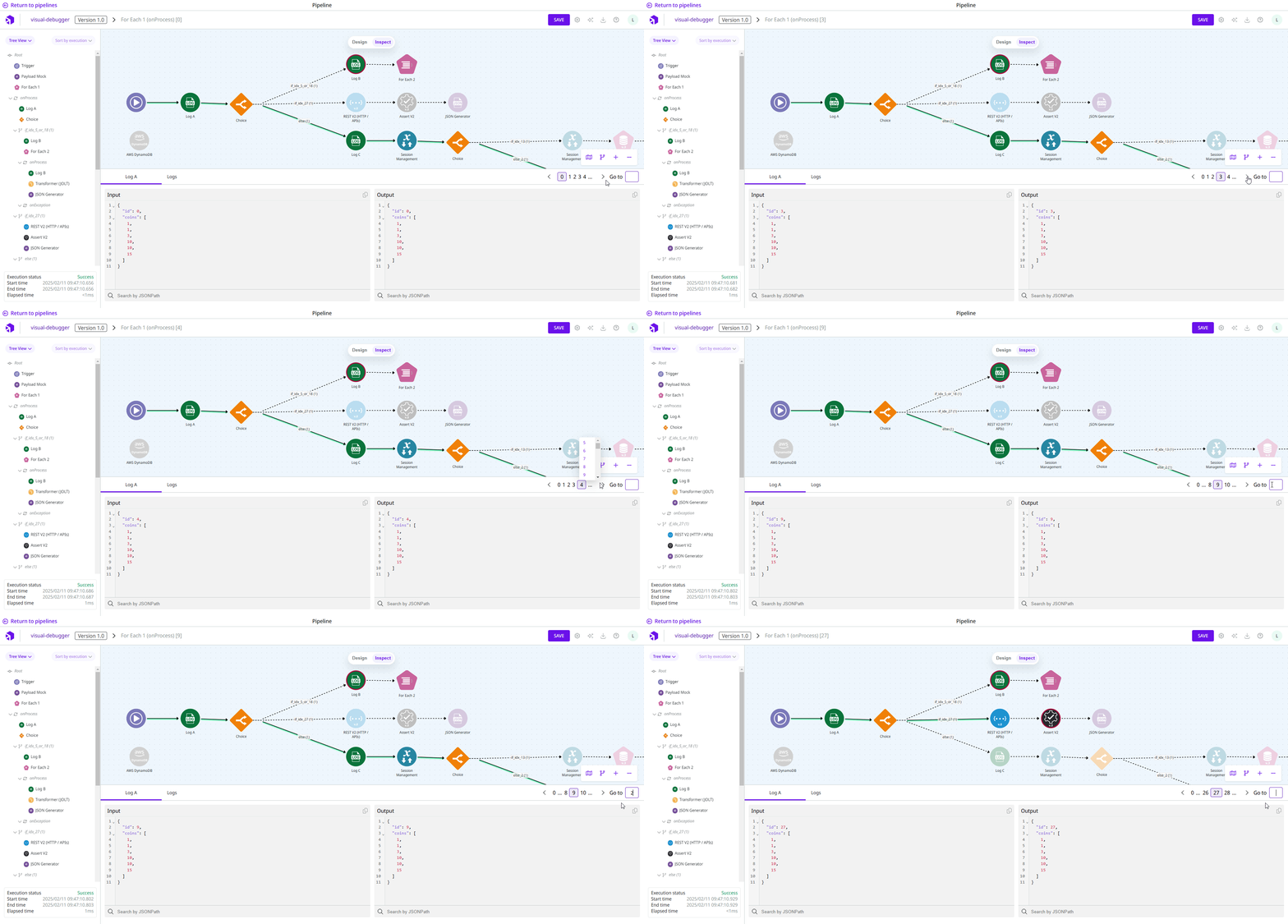
In Inspect Mode, a green line highlights the execution path. Dashed lines and grayed-out connectors indicate the parts of the flow that were not executed, while red connectors indicate a failed execution.

See an illustration of these visual elements:

<figure><img src="https://content.gitbook.com/content/jvO5S91EQURCEhbZOuuZ/blobs/9GSPALYcmXOwescfc2KQ/image-2.png" alt="Illustration of an execution in debug mode, with green and dashed lines, grayed out and red components."><figcaption><p>Visual execution path of the flow.</p></figcaption></figure>

This mode is read-only, so you can’t edit the flow while you are in it. To edit the flow, you must switch back to Design Mode by clicking the **Design** button.

{% hint style="info" %}
Changes in Design Mode won’t be visible in Inspect Mode until you execute the flow again. This makes comparison easier, since you can visualize the old flow while editing the current flow.
{% endhint %}

### **Inspect Mode navigation**

#### **Left Panel**

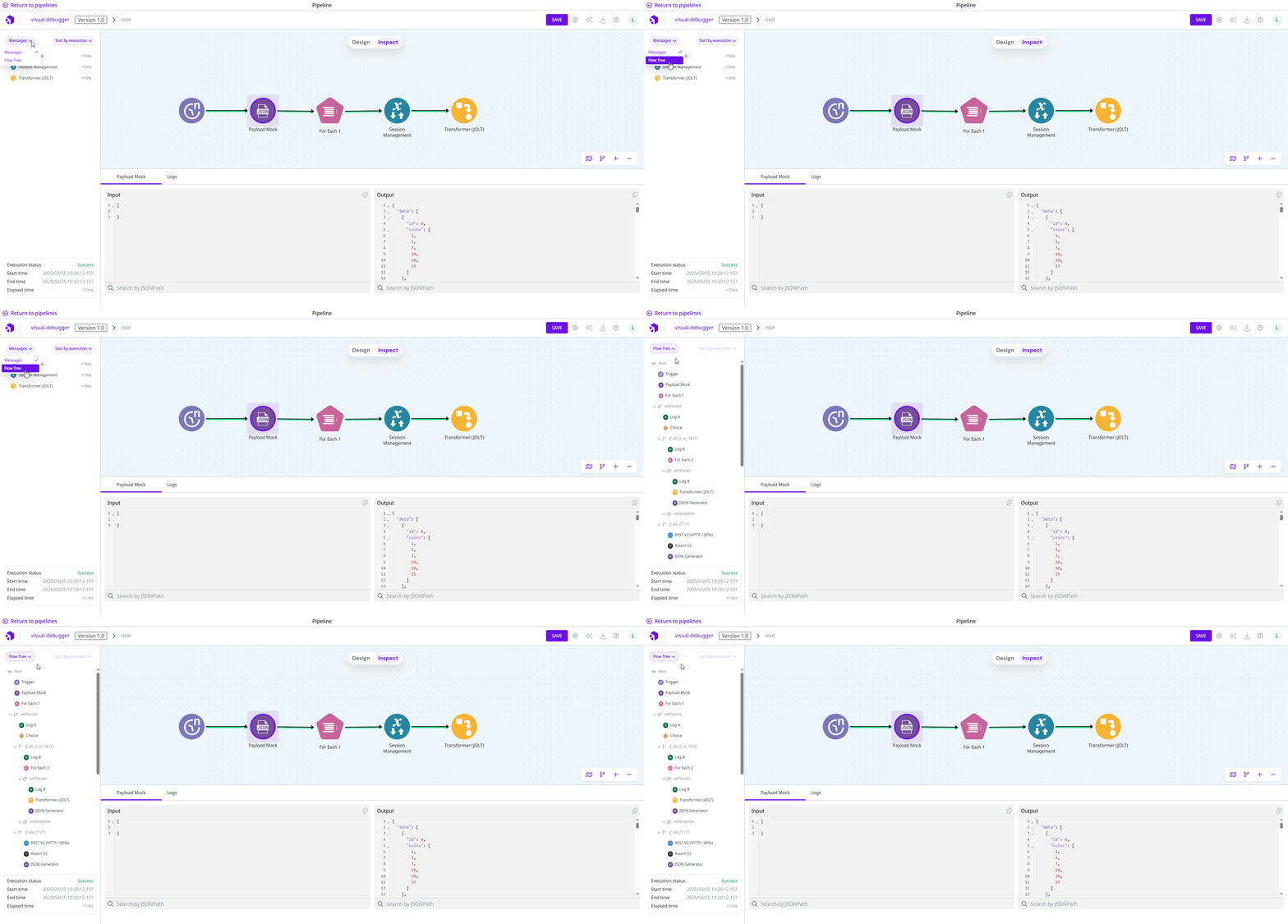
The **Left Panel** in the Canvas displays the flow’s connectors in two ways: **Messages** and **Flow Tree**.

<figure><img src="https://content.gitbook.com/content/jvO5S91EQURCEhbZOuuZ/blobs/uUuThSy2sYhH9SWuVxB7/Messages%20and%20Flow%20Tree.gif" alt=""><figcaption><p>Messages and Flow Tree in the Left Panel.</p></figcaption></figure>

**Messages**

In **Messages**, you can view a list of executed connectors for the current level or loop iteration, which can be sorted by:

* **Execution order:** Connectors are listed in the order they were executed.
* **Execution time:** Connectors are listed by their execution time in descending order (from the longest time to the shortest time).

To view more details about a connector’s input and output messages, click the desired connector. To locate the connector in the flow, double-click it.

**Flow Tree**

The **Flow Tree** provides a complete view of your flow in a tree structure in which all connectors (connected or not connected to the flow) and subflows are displayed.

In the Flow Tree, you can:

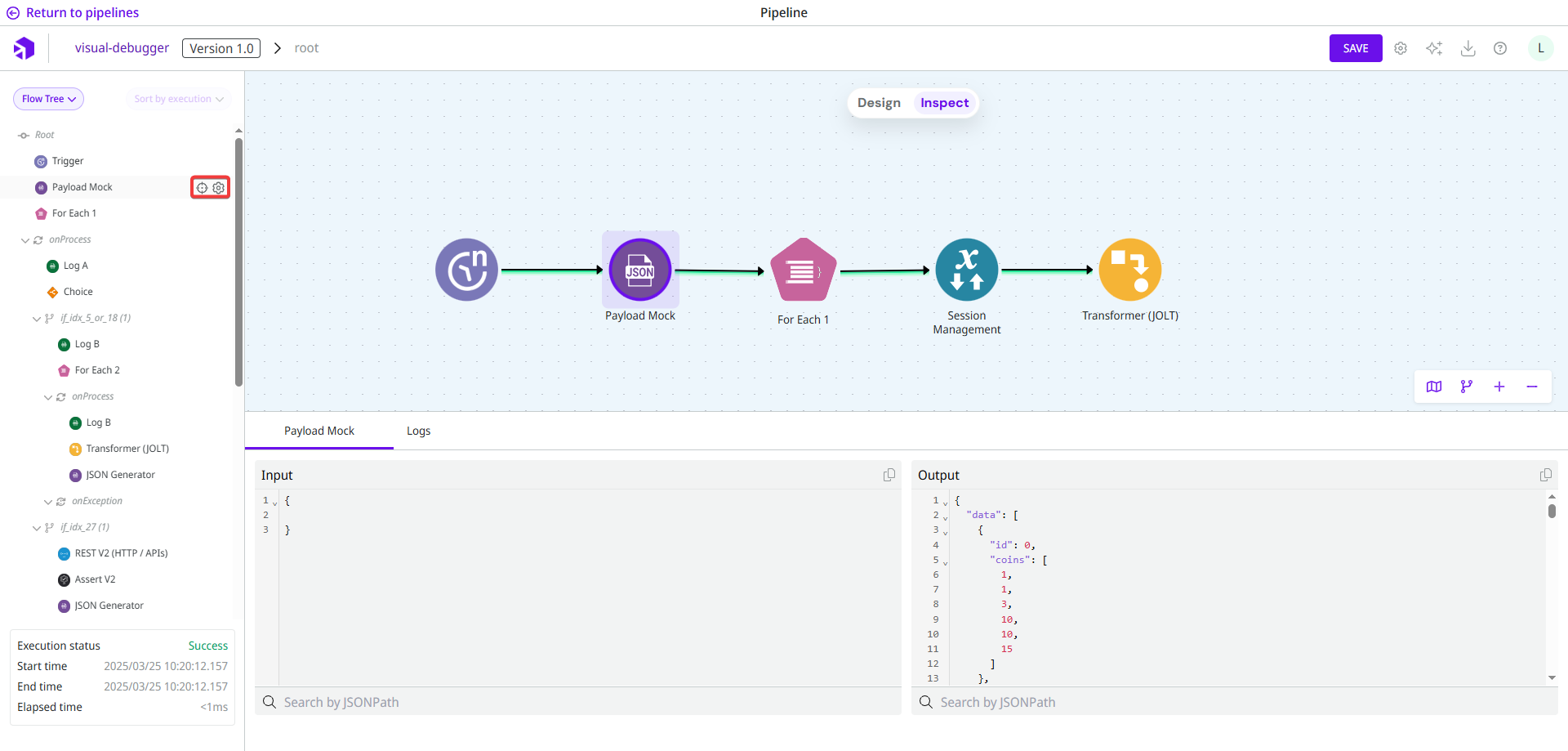
* Click the **focus icon** to locate the connector in the flow.
* Click the **gear icon** to open the connector’s configuration form in read-only mode.

<figure><img src="https://content.gitbook.com/content/jvO5S91EQURCEhbZOuuZ/blobs/tDERRbpjuWsxVtNzpvuV/Focus%20and%20Settings%20button.png" alt=""><figcaption><p>Focus and gear icons in the Flow Tree.</p></figcaption></figure>

**Connector details**

At the bottom of the panel, you can access detailed information about the connector. This information can be accessed by:

* Clicking the connector in the flow.
* Selecting it in the **Messages** list.

The available details include:

* **Execution status:** The execution status, either `Success` or `Failed`.
* **Start time:** The start time of the connector’s execution in `YYYY/MM/DD HH:mm:ss.SSS`.
* **End time:** The end time of the connector’s execution in `YYYY/MM/DD HH:mm:ss.SSS`.
* **Elapsed time:** The total execution time in milliseconds.

#### **Lower Panel**

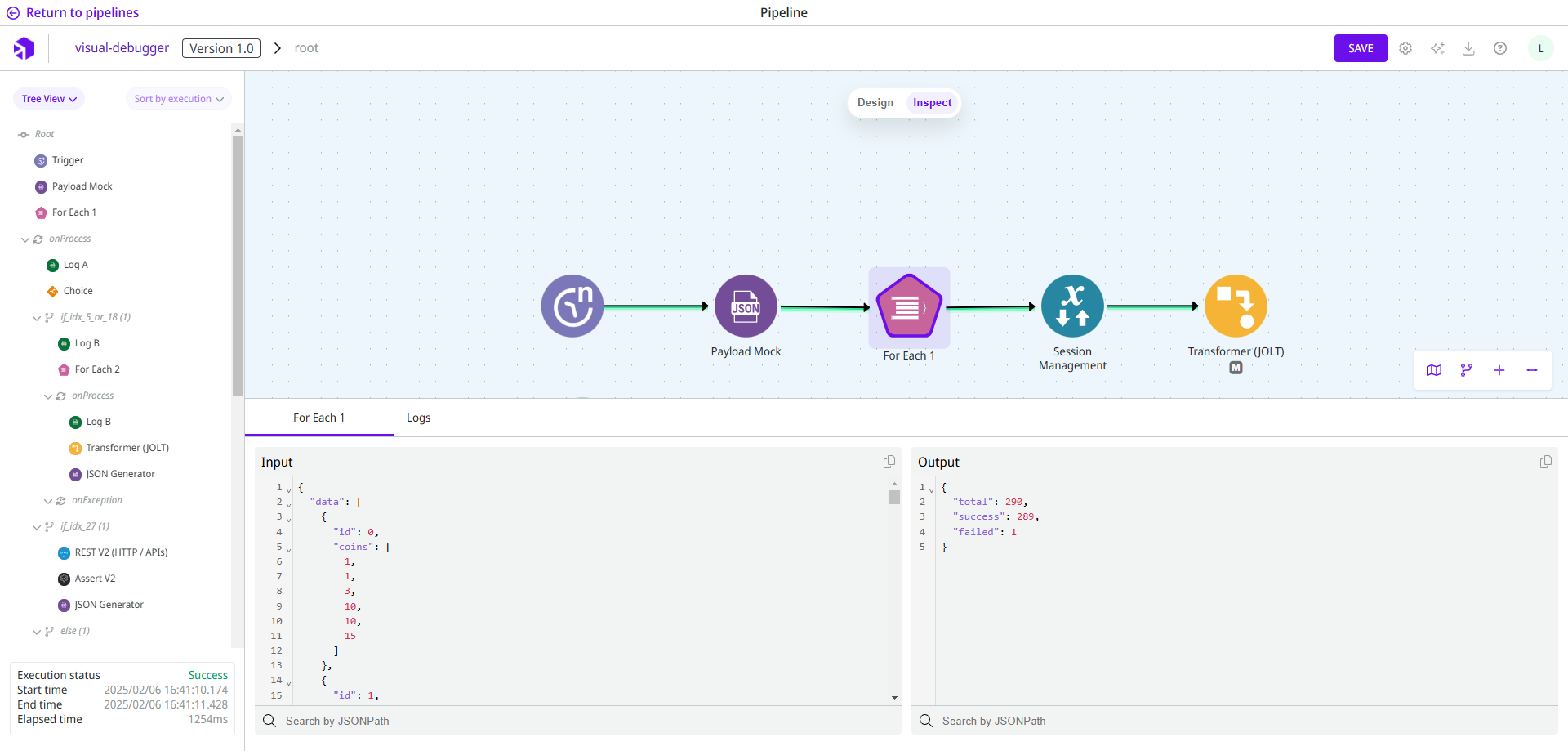
The **Lower Panel** in the Canvas provides access to the **Step Info** and **Logs** tab.

<figure><img src="https://content.gitbook.com/content/jvO5S91EQURCEhbZOuuZ/blobs/n5foQjQPZ3BVdHSHAvG1/Lower%20Panel.png" alt=""><figcaption><p>Lower Panel with information about the selected connector.</p></figcaption></figure>

**Step Info**

This tab displays the input and output of the selected connector in read-only mode. You can also search for specific JSONPath expressions within the **Input** and **Output** columns.

**Logs**

If logs are generated by the selected connector during execution, they are available on the **Logs** tab.

### **Loops in Inspect Mode**

Some connectors used in the flow can create loops. These connectors are:

* [Do While](https://app.gitbook.com/s/EKM2LD3uNAckQgy1OUyZ/connectors/logic/do-while)
* [For Each](https://app.gitbook.com/s/EKM2LD3uNAckQgy1OUyZ/connectors/logic/for-each)
* [Stream Excel](https://app.gitbook.com/s/EKM2LD3uNAckQgy1OUyZ/connectors/files/stream-excel)
* [Stream File Reader](https://app.gitbook.com/s/EKM2LD3uNAckQgy1OUyZ/connectors/files/stream-file-reader)
* [Stream File Reader Pattern](https://app.gitbook.com/s/EKM2LD3uNAckQgy1OUyZ/connectors/files/stream-file-reader-pattern)
* [Stream JSON File Reader](https://app.gitbook.com/s/EKM2LD3uNAckQgy1OUyZ/connectors/files/stream-json-file-reader)
* [Stream XML File Reader](https://app.gitbook.com/s/EKM2LD3uNAckQgy1OUyZ/connectors/files/stream-xml-file-reader)
* [Stream DB V3](https://app.gitbook.com/s/EKM2LD3uNAckQgy1OUyZ/connectors/structured-data/stream-db-v3)

When a loop is created, you can navigate through the index loops in the navigation menu at the bottom of the Canvas. The three ways to navigate are:

* Using the arrows.
* Clicking the three dots to open the index you want.
* Entering the index loop in the **Go to** field.

<figure><img src="https://content.gitbook.com/content/jvO5S91EQURCEhbZOuuZ/blobs/Gorh1M3PTKCgqHysfrPA/Loop%20navigation%20menu.gif" alt="Navigation in the menu with the arrows, index pagination, and the &#x22;Go to&#x22; field."><figcaption><p>Navigation menu in connectors with loops.</p></figcaption></figure>

The current loop index is displayed in two places: in the navigation menu at the lower center of the Canvas and in the breadcrumb at the upper left corner, enclosed in brackets. For example, “For Each 1 (onProcess) \[27]” indicates that the current loop index is **27**.

#### Loop within a loop

A flow can contain loops within loops. If you are in an OnProcess and want to enter another OnProcess in Inspect Mode, two different scenarios can occur:

<details>

<summary><strong>Scenario 1: Accessing the OnProcess of a connector that has been executed</strong></summary>

Suppose you are in the OnProcess of a **For Each** connector (referred to as **For Each A**) and viewing loop number 2. At this point, the flow is:

`root > For Each A (onProcess) [2]`

Within loop 2 of this OnProcess, there is another **For Each** connector (**For Each B**) that has been executed. When you access the OnProcess of **For Each B**, the subflow displayed will continue from the execution path of the previous level.

The flow now appears as:

`root > For Each A (onProcess) [2] > For Each B (onProcess) [0]`

</details>

<details>

<summary><strong>Scenario 2: Accessing the OnProcess of a connector that was not executed</strong></summary>

Now, let’s assume you are back in the OnProcess of **For Each A**, but this time in loop number 5. At this point, the flow is:

`root > For Each A (onProcess) [5]`

In loop 5, **For Each B** was not executed, but you can still access its OnProcess. Inspect Mode automatically aligns the subflow to the last executed path of **For Each B**.

Since **For Each B** was executed in loop 2, the breadcrumb updates to:

`root > For Each A (onProcess) [2] > For Each B (onProcess) [0]`

If you return to the **For Each A** level, the breadcrumb will display loop 2 instead of loop 5.

</details>

### **Import execution in Inspect Mode**

When you import an execution into the Canvas, the Inspect Mode is activated, allowing you to analyze the execution in read-only mode.

{% hint style="info" %}
The execution is opened in Inspect Mode only if it was exported after the release of the Design and Inspect Mode feature.
{% endhint %}