> For the complete documentation index, see [llms.txt](https://docs.digibee.com/documentation/llms.txt). Markdown versions of documentation pages are available by appending `.md` to page URLs; this page is available as [Markdown](https://docs.digibee.com/documentation/developer-guide/development-cycle/overview/deployment/deployments.md).
# How to deploy or redeploy a pipeline
Learn how to deploy or redeploy a pipeline to test or production environments.
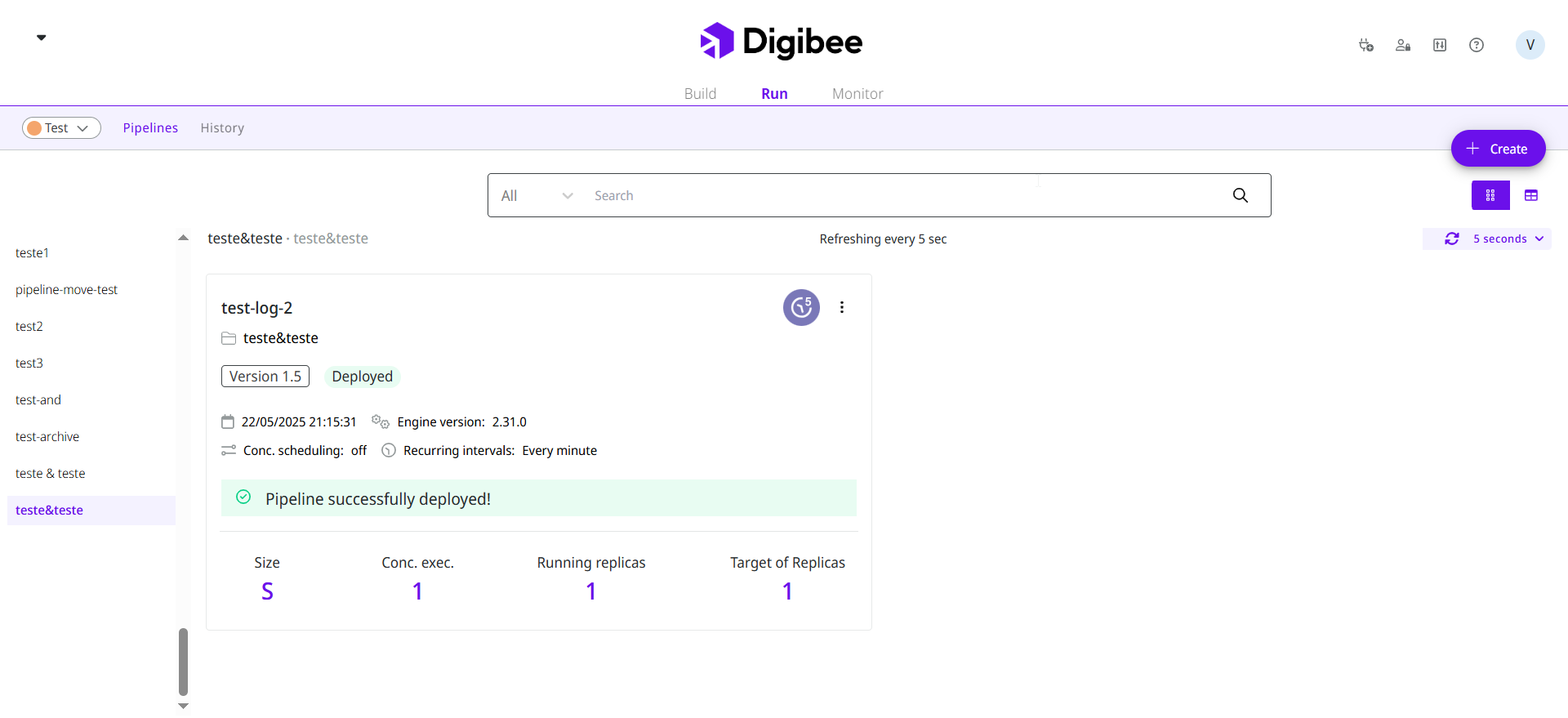
Once you’ve created your pipeline flow, the next step is to make it available by deploying it. On the Run page, you can deploy your pipeline in just a few seconds, depending on the chosen deployment size. You can deploy it to either the test or production environment.
For more details on how deployments are managed, see [Run Concepts](/documentation/developer-guide/development-cycle/overview/runtime.md).
## Deploying a pipeline
To deploy a pipeline:
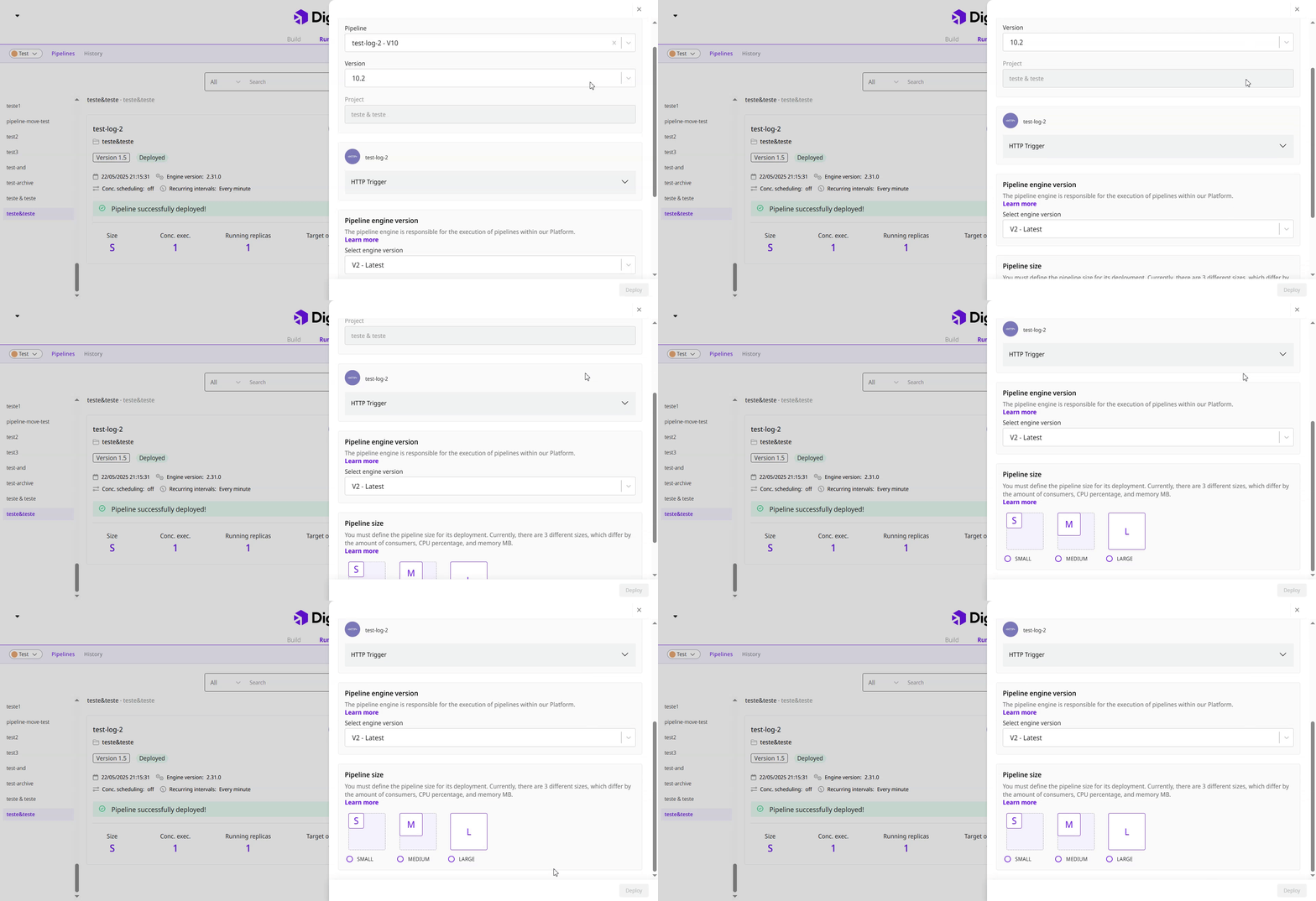
1. Go to the **Run** page, select the desired environment in the upper-left corner, and click **Create**.
2. Select the pipeline and version. After selection, the Platform displays:
* The associated project.
* The instance, if it’s a multi-instance pipeline.
* The trigger used in the pipeline and its details.
3. Select the Pipeline Engine version.
4. Choose the pipeline size. For multi-instance pipelines, also select the appropriate instance.
5. Define the number of simultaneous executions.
6. Specify the number of replicas for the deployment.
7. Click **Deploy**.
* For **Pipeline-Based Model** users, a screen with the license consumption calculation will be displayed.
* For **Subscription-Based Model** users, a screen with the RTU and subscription usage calculation will be displayed.
8. After deployment, you will be redirected to the project associated with the pipeline.
{% hint style="info" %}
If the pipeline has already been deployed, the current settings will automatically be applied to the new deployment. To learn more about pipeline deployment status, [read the documentation](/documentation/developer-guide/development-cycle/overview/deployment/pipeline-deployment-status.md).
{% endhint %}
## Redeploying a pipeline
After creating and deploying a pipeline flow, you may need to redeploy it. This can occur, for example, when a warning appears on the pipeline card, indicating that the current deployment is no longer valid.
To redeploy a pipeline:
1. Go to the **Run** page and locate the pipeline you want to redeploy.
2. Click the three dots and select **Redeploy**. The existing deployment details are displayed, including the project, instance (for multi-instance pipelines), and previously configured settings.
3. Update the options you want to change, such as:
* Pipeline size
* Number of concurrent executions
* Number of replicas
4. Click **Redeploy**.
### Redeployment behavior
During redeployment in Digibee, the existing pipeline instance is removed before a new one is created.
When the pipeline has a **single replica**, the availability impact is higher, and brief downtime may occur during the replacement. When there are **multiple replicas**, the impact is reduced, since new instances are brought up while others are still running.\
\
If the runtime is down at the time of redeployment, no new replicas can be allocated and the pipeline will remain offline until the runtime recovers. Always check the runtime status before triggering a redeployment, and schedule redeployments outside of critical execution periods.
{% hint style="warning" %}
When performing a deploy, redeploy, or promote action, an informational warning appears if the number of replicas exceeds 10. This warning is informational only and does not block the action.
{% endhint %}
## Deployment issues
When deploying or redeploying a pipeline, you may encounter errors that prevent the action from completing. For guidance, check our dedicated [**Deployment Issues**](/documentation/troubleshooting/deployment-issues/globals-and-accounts-issues.md) section under the [**Problem-Solving**](https://docs.digibee.com/documentation/troubleshooting/) tab. Always refer to this section whenever an error occurs.
---
# Agent Instructions
This documentation is published with GitBook. GitBook is the documentation platform designed so that both humans and AI agents can read, navigate, and reason over technical content effectively. Learn more at gitbook.com.
## Querying This Documentation
If you need additional information that is not directly available in this page, you can query the documentation dynamically by asking a question.
Perform an HTTP GET request on the current page URL with the `ask` query parameter, and the optional `goal` query parameter:
```
GET https://docs.digibee.com/documentation/developer-guide/development-cycle/overview/deployment/deployments.md?ask=&goal=
```
`ask` is the immediate question: it should be specific, self-contained, and written in natural language.
`goal` is optional and describes the broader end goal you are ultimately trying to accomplish on behalf of the user. GitBook uses it to tailor the answer towards what is most useful for that goal.
The response will contain a direct answer to the question and relevant excerpts and sources from the documentation.
Use this mechanism when the answer is not explicitly present in the current page, you need clarification or additional context, or you want to retrieve related documentation sections.