> For the complete documentation index, see [llms.txt](https://docs.digibee.com/documentation/llms.txt). Markdown versions of documentation pages are available by appending `.md` to page URLs; this page is available as [Markdown](https://docs.digibee.com/documentation/developer-guide/development-cycle/dashboards/vpn-connections-monitoring.md).
# VPN connections monitoring
Learn how to monitor your VPN connections on the Digibee Integration Platform.
VPNs (Virtual Private Networks) are a secure technology that allows connection between Digibee clusters and customer environments. Without proper monitoring, failures or degradations in VPN connections may go unnoticed, leading to service disruptions.
In this article, you will learn how to monitor your VPN connections to ensure that tunnels and mappings are functional, and how to view data traffic in the tunnels.
## How to monitor your VPN connections
Follow the steps below to learn how to monitor your VPN connections on the Digibee Integration Platform.
### Visualize your VPN connections
1. On the Platform’s home page, click **Monitor.**
2. On the Monitor page, click the **VPN Connectivity** tab at the top menu.
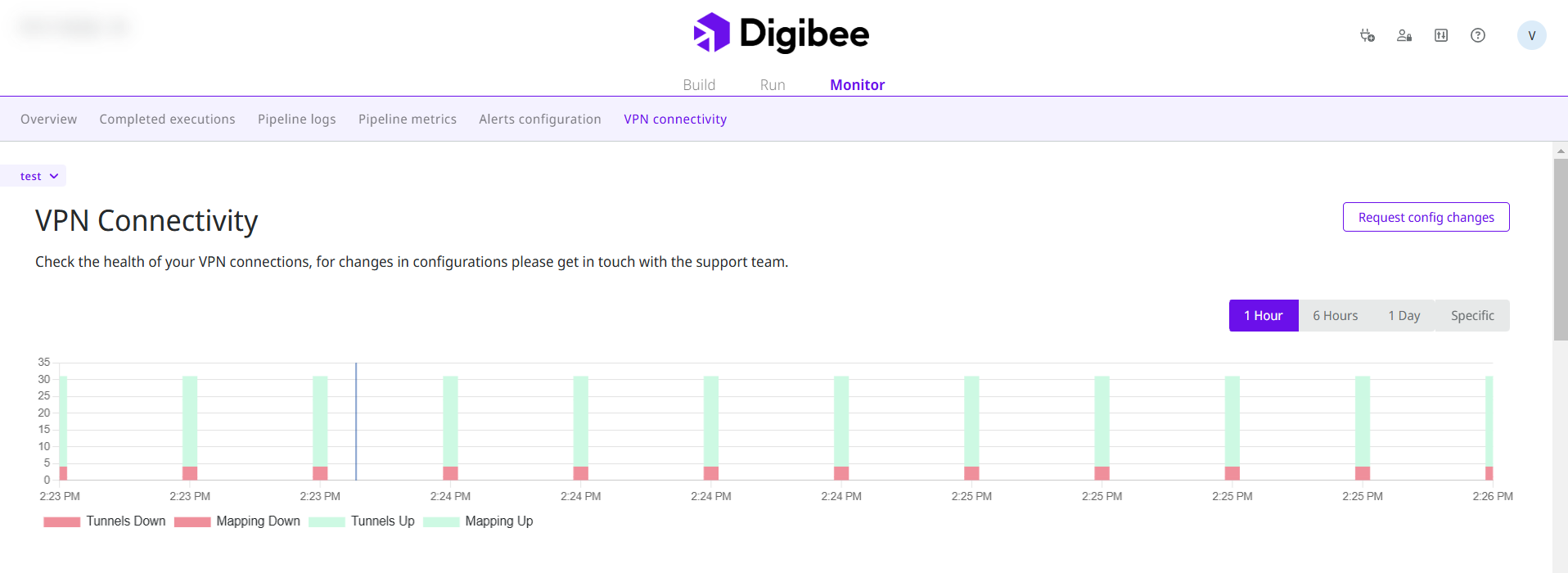
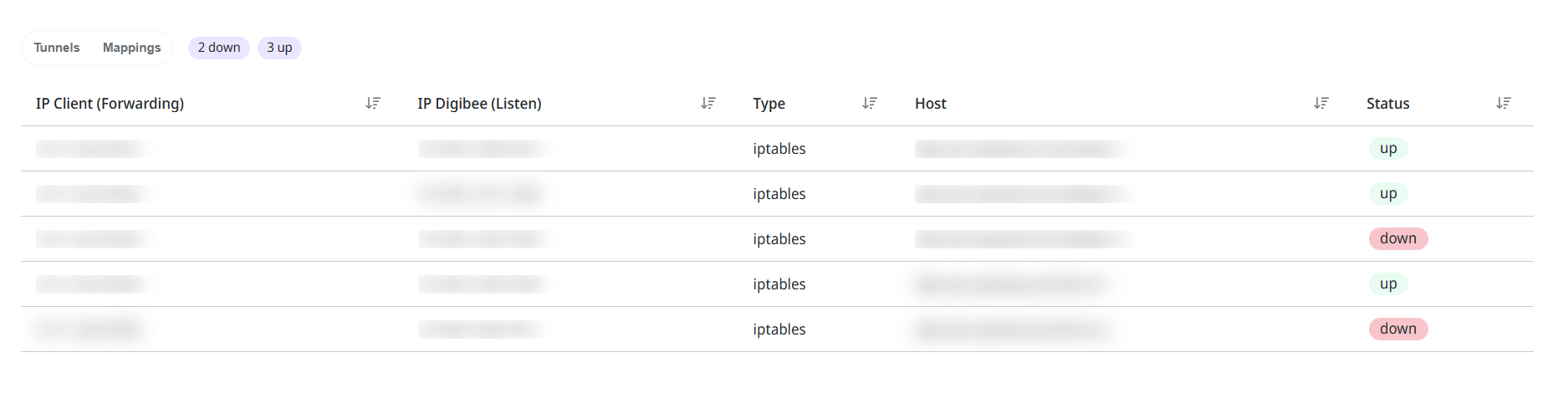
3. The page displays an interactive graph of your VPN tunnels and mappings, along with a table of all VPN connections.
#### Graph
The VPN connections graph shows the status of your tunnels and mappings during a specific time period. You can select the desired period to analyze the ups and downs of your VPN tunnels. Options are:
* 1 hour
* 6 hours
* 1 day
* Specific time span
To see the exact number of ups and downs, hover over the graphs.
#### Table
The VPN connections table shows the list of VPN tunnels and mappings, each one with its respective category columns.
**Tunnels**
* Connection Tunnel
* Traffic (bytes)
* Status
**Mappings**
* IP Client (Forwarding)
* IP Digibee (Listen)
* Type
* Host
* Status
### Configure your connections
At the top right of the page, you will find the **Request config changes** button. Click it to open a chat request with the Digibee Support team to change your VPN configuration.
---
# Agent Instructions
This documentation is published with GitBook. GitBook is the documentation platform designed so that both humans and AI agents can read, navigate, and reason over technical content effectively. Learn more at gitbook.com.
## Querying This Documentation
If you need additional information that is not directly available in this page, you can query the documentation dynamically by asking a question.
Perform an HTTP GET request on the current page URL with the `ask` query parameter, and the optional `goal` query parameter:
```
GET https://docs.digibee.com/documentation/developer-guide/development-cycle/dashboards/vpn-connections-monitoring.md?ask=&goal=
```
`ask` is the immediate question: it should be specific, self-contained, and written in natural language.
`goal` is optional and describes the broader end goal you are ultimately trying to accomplish on behalf of the user. GitBook uses it to tailor the answer towards what is most useful for that goal.
The response will contain a direct answer to the question and relevant excerpts and sources from the documentation.
Use this mechanism when the answer is not explicitly present in the current page, you need clarification or additional context, or you want to retrieve related documentation sections.