> For the complete documentation index, see [llms.txt](https://docs.digibee.com/documentation/llms.txt). Markdown versions of documentation pages are available by appending `.md` to page URLs; this page is available as [Markdown](https://docs.digibee.com/documentation/developer-guide/development-cycle/build-overview/pipelines/how-to-create-a-pipeline.md).
# How to create a pipeline
Learn how to create, configure, and build a pipeline on the Digibee Integration Platform.
Pipelines are created within the Canvas environment. Use the following steps to learn how to create, configure, and build your pipeline.
## **Creating the pipeline**
Follow these steps to create a pipeline:
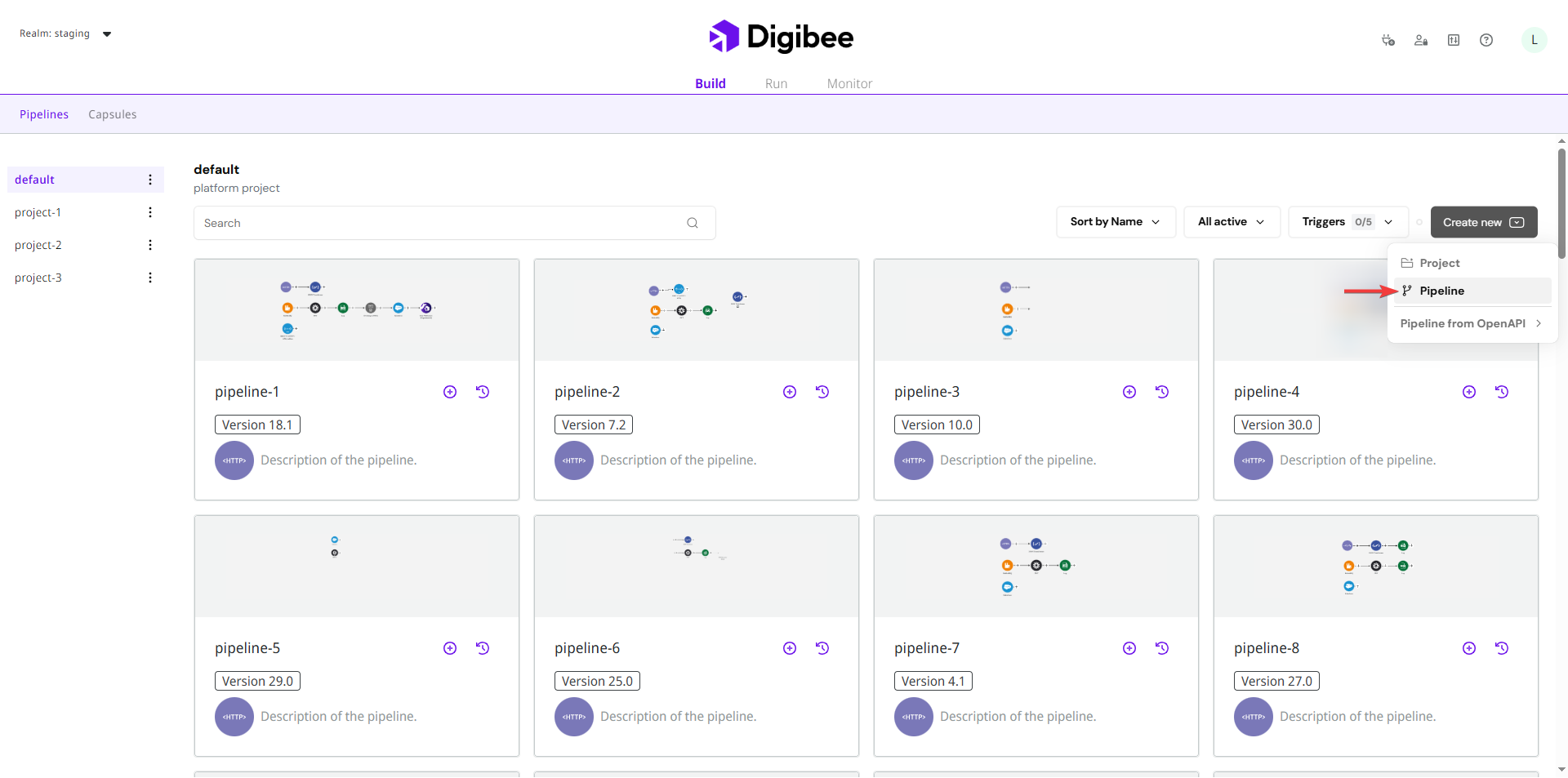
1. On the Build page, click the **Pipeline** tab.
2. Click **Create new** in the upper right corner.
3. Select the **Pipeline** option.
The pipeline is automatically created within your **default project**. To create a pipeline in a specific project, select the desired project before clicking **Create**.
## **Configuring the pipeline**
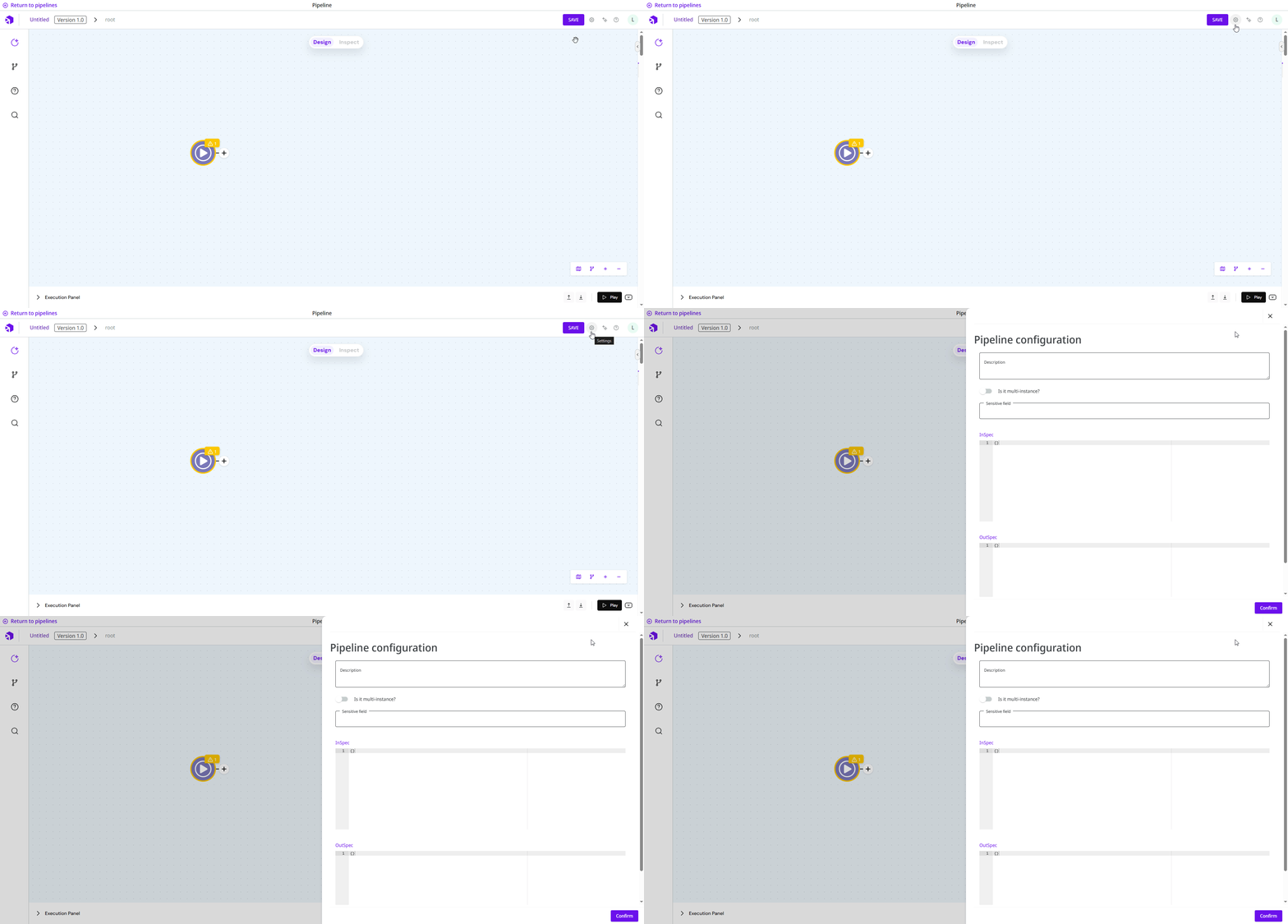
1. Click the gear icon in the upper-right corner of the screen (next to the **Save** button) to access the pipeline settings.
2. A configuration panel will open on the right side of the screen. Fill in the fields as described below:
* **Description:** Enter a brief description of the pipeline.
* **Is it multi-instance?:** Enable this option if the pipeline should run as a multi-instance pipeline. For more information, see the [Multi-Instance](/documentation/developer-guide/platform-administration/settings/multi-instance.md) documentation.
* **Sensitive field:** Define the data fields that should be obfuscated in the pipeline logs, which will appear as `***`. The hyphen character (`-`) is allowed in the field name, but other special characters, accents, and the letter *ç* are not supported.
{% hint style="info" %}
Sensitive fields defined in this configuration apply only to this specific pipeline. If you need to apply sensitive fields to all pipelines in your realm, refer to the [Sensitive Fields Policy](/documentation/developer-guide/platform-administration/governance/policies/security/sensitive-fields.md).
{% endhint %}
* **InSpec & OutSpec (optional):** Use these configurations to define structural validation rules for the pipeline’s input and output in JSON format.
#### **InSpec & OutSpec: Validating the pipeline structure**
The **InSpec** and **OutSpec** settings allow you to validate the structure of incoming and outgoing data in **JSON format**. They help ensure that your pipeline only processes payloads that match the expected schema.
* **InSpec:** Validates the pipeline input payload structure.
* **OutSpec:** Validates the final output payload structure.
Both use JSON validators (similar to JSON Schema) to define the expected data format.
**Benefits**
* Prevents execution errors caused by unexpected data structures.
* Reduces rework due to system incompatibilities.
* Improves data flow security and predictability.
* Simplifies debugging via automatic schema validation.
* Documents input/output contracts clearly.
**How it works**
* Both **InSpec** and **OutSpec** contain a **JSON Validator** schema.
* If the payload violates the defined structure during execution, the pipeline is **interrupted**.
**Example: InSpec**
```json
{
"type": "object",
"required": ["id", "name", "email"],
"properties": {
"id": { "type": "string" },
"name": { "type": "string" },
"email": { "type": "string", "format": "email" }
}
}
```
This example ensures that the input payload includes `id`, `name`, and `email`, with a valid email format.
**Important notes**
* These fields are **optional**. Pipelines work normally without InSpec and OutSpec.
* They are recommended for high-criticality pipelines, multi-consumer flows, B2B integrations, and internal contracts between teams.
* They help improve integration reliability and data consistency.
## **Building the flow in the pipeline**
Follow these steps to create a flow in a pipeline:
1. Move the mouse pointer over the trigger already available in the Canvas and click on the **Configuration** button (represented by a gear icon).
2. Select a [trigger](/documentation/connectors-and-triggers/triggers/overview.md) from the available options. The trigger starts the execution of the pipeline, such as an [event](/documentation/connectors-and-triggers/pt-br/triggers/messaging-and-events/event.md) or an [email](/documentation/connectors-and-triggers/pt-br/triggers/web-protocols/email.md).
3. Configure the selected trigger and click on **Confirm** to save your changes.
4. After configuring the trigger, click on the **+** button to begin creating your flow. Refer to the [Smart Connector User Experience documentation](/documentation/developer-guide/development-cycle/build-overview/canvas/smart-connector-user-experience.md) for more details about available connection options.
5. While building your flow, use the [**Execution panel**](/documentation/developer-guide/development-cycle/build-overview/canvas/execution-panel.md) for testing and the [**Inspect mode**](/documentation/developer-guide/development-cycle/build-overview/canvas/design-and-inspect-mode.md) for troubleshooting.
{% hint style="warning" %}
Pipelines are not saved automatically. You need to click the **Save** button each time you want to save your changes. The first time you save, provide the **Name**, **Description**, and **Project** to which the pipeline belongs.
{% endhint %}
The Canvas, the environment where pipelines are built, offers several navigation options. To learn more, read the [Canvas documentation](/documentation/developer-guide/development-cycle/build-overview/canvas.md).
### Pipeline size restriction
Each pipeline has a maximum size limit of **1 MB**, which includes all its components: [connectors](/documentation/connectors-and-triggers/connectors/overview.md), [triggers](/documentation/connectors-and-triggers/triggers/overview.md), [accounts](/documentation/developer-guide/development-cycle/build-overview/accounts.md), [globals](/documentation/developer-guide/development-cycle/build-overview/globals.md), and more. If the total size exceeds this limit, deployment will not be possible. Before deploying it, ensure that the pipeline size is within the allowed limit.
#### How to identify the size of your pipeline?
**Step 1:** Copy all the pipeline connectors using one of the following methods:
* Press **Ctrl/Cmd + A** and then **Ctrl/Cmd + C**.
Or
* Hold **Ctrl/Cmd**, click on each connector, and then press **Ctrl/Cmd + C**.
**Step 2:** Paste the connectors on [JSON Size Analyzer](https://www.debugbear.com/json-size-analyzer) pressing **Ctrl/Cmd + V** and execute a query to check the approximate size of the pipeline.
If the pipeline is smaller than 1 MB, it can be deployed. If it exceeds this limit, reduce its size before deployment.
---
# Agent Instructions
This documentation is published with GitBook. GitBook is the documentation platform designed so that both humans and AI agents can read, navigate, and reason over technical content effectively. Learn more at gitbook.com.
## Querying This Documentation
If you need additional information that is not directly available in this page, you can query the documentation dynamically by asking a question.
Perform an HTTP GET request on the current page URL with the `ask` query parameter, and the optional `goal` query parameter:
```
GET https://docs.digibee.com/documentation/developer-guide/development-cycle/build-overview/pipelines/how-to-create-a-pipeline.md?ask=&goal=
```
`ask` is the immediate question: it should be specific, self-contained, and written in natural language.
`goal` is optional and describes the broader end goal you are ultimately trying to accomplish on behalf of the user. GitBook uses it to tailor the answer towards what is most useful for that goal.
The response will contain a direct answer to the question and relevant excerpts and sources from the documentation.
Use this mechanism when the answer is not explicitly present in the current page, you need clarification or additional context, or you want to retrieve related documentation sections.