> For the complete documentation index, see [llms.txt](https://docs.digibee.com/documentation/llms.txt). Markdown versions of documentation pages are available by appending `.md` to page URLs; this page is available as [Markdown](https://docs.digibee.com/documentation/connectors-and-triggers/connectors/security/digibee-jwt/digibee-jwt-implementation.md).
# Digibee JWT implementation
Learn how to use the Digibee JWT connector on the Digibee Integration Platform.
The [Digibee JWT](/documentation/connectors-and-triggers/connectors/security/digibee-jwt.md) connector is most commonly used to authorize access to a service exposed on the network via the HTTP protocol. To access these services, it’s necessary to log in using a pipeline, which will be responsible for generating the JWT token. With this token, you have access to permitted routes, services, and resources.
## Step 1 - Creating a pipeline for authentication and JWT generation
The first step to create an authentication pipeline is to configure the trigger to login:
1. On the Digibee Platform home page, open the **Build** page.
2. Click **Create** and then select **Pipeline**.
3. Inside the Canvas, click on the **Configurations** icon on the trigger.
4. In the trigger configuration, select [REST](/documentation/connectors-and-triggers/triggers/web-protocols/rest.md).
5. Activate the **External API** and **API Key** options and configure the rest as desired. After configuring the trigger, add the Digibee JWT connector to your integration.
6. Click the **+** button next to the trigger and search for the connector **Digibee JWT** or drag the connector to your Canvas.
7. Open connector settings and select **Generate** operation to create the token.
8. In the **Scopes** field, set the scopes for the JWT token, separated by comma.
9. In the **Expiration** field, set the token expiration time (in milliseconds). The maximum expiration is 365 days (31536000000 milliseconds).
10. Click **Confirm** to implement the connector settings.
{% hint style="info" %}
JWT token generation is not done in test mode. This is only possible when the pipeline is published in one of the environments (Test or Prod).
{% endhint %}
## Stage 2 – Using the Assert v2 connector
Use the connector [Assert v2](/documentation/connectors-and-triggers/connectors/tools/assert-v2.md) to create a validation using a pre-registered username and password on the Digibee Integration Platform by following the steps below:
1. Click the **+** button next to the **Digibee JWT** connector and search for the **Assert V2** connector or drag the connector to your Canvas.
2. Open the connector settings and enter the following code in the **Condition** field:
```
#{body.user} == #{globals.user} && #{body.password} == #{globals.password}
```
3. Click **Confirm** to implement the connector setting.
## Step 3 - Calling the pipeline for login
After you finish the configuration, you need to deploy the pipeline in your appropriate test or production environment to test the flow. Learn more about [deploying pipelines on the Platform](/documentation/development-cycle/overview/deployment/deployments.md).
With the API Key configured, you can start testing. See in the following example how to do this using Postman. You can also use the client you typically use or any other application you prefer.
To perform the operation in Postman:
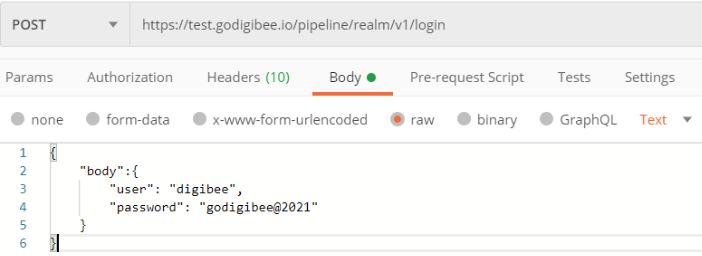
1. Provide the API Key in the header of the request.
2. Provide the username and password configured in step 2 as mandatory in the flow.
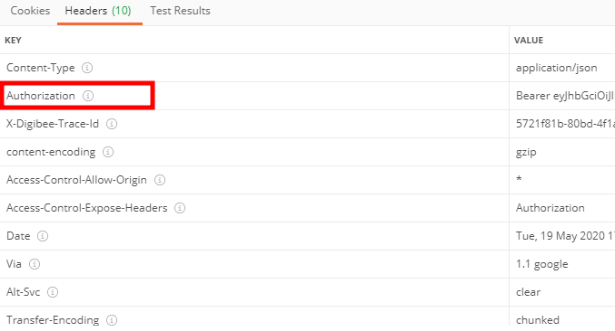
When this request is made, the service returns a successful status:
3. Search for the necessary information in the headers of the response, in the **Authorization** field. This is the authentication, which means that the generated JWT that will be used in combination with the API Key for other flows that use the REST API and HTTP triggers.
## Configuring the trigger for flows with new key-based authentication
With Digibee JWT, you can customize security in the construction of your next pipeline projects. Make the necessary adjustments in the trigger following the instructions below:
1. On the Digibee Integration Platform home page, open the **Build** page.
2. Click **Create** and then select **Pipeline**.
3. Inside the Canvas, click on the **Configurations** icon on the trigger.
4. In the trigger configuration, select **REST**.
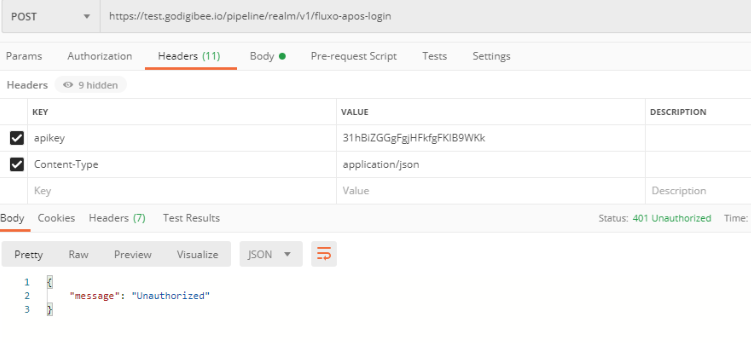
5. Activate the **External API**, **API Key**, and **Token JWT** options. This way, whenever routes are called, it will be necessary to inform the API Key and the JWT token generated. If you just inform the API Key without the token, an authorization error will be returned:
---
# Agent Instructions
This documentation is published with GitBook. GitBook is the documentation platform designed so that both humans and AI agents can read, navigate, and reason over technical content effectively. Learn more at gitbook.com.
## Querying This Documentation
If you need additional information that is not directly available in this page, you can query the documentation by asking a question.
Perform an HTTP GET request on the following URL with the `ask` and `goal` query parameters:
```
GET https://docs.digibee.com/documentation/connectors-and-triggers/connectors/security/digibee-jwt/digibee-jwt-implementation.md?ask=&goal=
```
`ask` is the immediate question: it should be specific, self-contained, and written in natural language.
`goal` is what the user is ultimately trying to achieve, the reason they need the answer. Sharing it helps GitBook give you a better, more relevant answer. A goal is most helpful when it describes the outcome the user wants rather than restating the question. For example, with `ask=how do I create an API token`, a goal like `automate deployments from our CI pipeline` lets GitBook tailor the answer to that use case.
The response will contain a direct answer to the question and relevant excerpts and sources from the documentation.
Use this mechanism when the answer is not explicitly present in the current page, you need clarification or additional context, or you want to retrieve related documentation sections.