> For the complete documentation index, see [llms.txt](https://docs.digibee.com/documentation/llms.txt). Markdown versions of documentation pages are available by appending `.md` to page URLs; this page is available as [Markdown](https://docs.digibee.com/documentation/connectors-and-triggers/connectors/structured-data/db-v2/db-v2-usage-scenarios.md).
# DB V2: Usage scenarios
Learn more about practical usage scenarios for the DB V2 connector, ranging from defining personalized connection properties to handling custom data types.
[**DB V2**](/documentation/connectors-and-triggers/connectors/structured-data/db-v2.md) is a connector that supports `SELECT`, `INSERT`, `DELETE`, and `UPDATE` operations, as well as `procedure` calls, returning results in a JSON structure. For the full list of supported databases, see the [**Supported databases**](/documentation/connectors-and-triggers/connectors/structured-data/supported-databases.md) documentation.
This document outlines various usage scenarios for the connector, ranging from defining personalized connection properties to handling custom data types.
Explore the supported usage scenarios below:
Configuring a QUERY operation with a SELECT statement
Use **DB V2** to run a `SELECT` query when you need to retrieve data from a configured database.
To do this, connect **DB V2** to the trigger and configure it as follows:
**General tab:**
* **Account Type**: Select the type of account you configured.
* **Account:** Choose the account used to authenticate with the database.
**Operation tab:**
* **Type:** Select `QUERY`.
* **Database URL:** Enter your database URL, such as `jdbc:mysql://myserver/mydb`.
* **SQL Statement:** Enter the SQL Statement, for example `SELECT * FROM CLIENTS`.
After [executing the pipeline](/documentation/developer-guide/development-cycle/build-overview/canvas/execution-panel.md), the output will be:
```json
{
"data": [
{
"uf": "SP",
"codigo": 1,
"cidade": "Osasco",
"logradouro": "Rua Laranjeiras",
"name": "João Bosco",
"due_date": "2019-03-27",
"email": "joao.bosco@digibee.com.br",
"cep": "XXXXX-XXX"
},
{
"uf": "SP",
"codigo": 2,
"cidade": "São Paulo",
"logradouro": "Rua João Bosco",
"name": "Roberto Carlos",
"due_date": "2019-03-27",
"email": "roberto.carlos@digibee.com.br",
"cep": "XXXXX-XXX"
}
],
"updateCount": 0,
"rowCount": 2
}
```
**Understanding the output**
The query returns a JSON object with three root properties:
* `data`: An array of objects representing the rows by the query. Each object contains properties corresponding to the columns in the `SELECT` statement. For example, if the query is `SELECT name FROM CLIENTS`, each object in the array will have a single `name` property.
* `updateCount`: The number of rows affected by the query. In this case, the value is `0` because a `SELECT` operation doesn’t modify the table.
* `rowCount`: The number of rows returned by the query.
Configuring the QUERY operation with an UPDATE statement
Use **DB V2** to update records in your database by executing an `UPDATE` query.
To do this, connect **DB V2** to the trigger and configure it as follows:
**General tab:**
* **Account Type**: Select the type of account you configured.
* **Account:** Choose the account used to authenticate with the database.
**Operation tab:**
* **Type:** Select `QUERY`.
* **Database URL:** Enter your database URL, such as `jdbc:mysql://myserver/mydb`.
* **SQL Statement:** Enter the SQL Statement, for example `UPDATE CLIENTS SET uf='SP' WHERE uf is null`.
After [executing the pipeline](/documentation/developer-guide/development-cycle/build-overview/canvas/execution-panel.md), the output will be:
```json
{
"data": null,
"updateCount": 5,
"rowCount": 0
}
```
**Understanding the output**
* `updateCount`: Confirms that five rows in the table were modified in this example.
Configuring the QUERY operation with a DELETE statement
Use **DB V2** to remove data from your database with a `DELETE` query.
To do this, connect **DB V2** to the trigger and configure it as follows:
**General tab:**
* **Account Type**: Select the type of account you configured.
* **Account:** Choose the account used to authenticate with the database.
**Operation tab:**
* **Type:** Select `QUERY`.
* **Database URL:** Enter your database URL, such as `jdbc:mysql://myserver/mydb`.
* **SQL Statement:** Enter the SQL Statement, for example `DELETE FROM CLIENTS WHERE code='111111'`.
After [executing the pipeline](/documentation/developer-guide/development-cycle/build-overview/canvas/execution-panel.md), the output will be:
```json
{
"data": null,
"updateCount": 1,
"rowCount": 0
}
```
**Understanding the output**
* `updateCount`: Confirms that one row in the table was deleted in this example.
Configuring the QUERY operation with an INSERT statement
Use **DB V2** to insert new records into your database using an `INSERT` query.
To do this, connect **DB V2** to the trigger and configure it as follows:
**General tab:**
* **Account Type**: Select the type of account you configured.
* **Account:** Choose the account used to authenticate with the database.
**Operation tab:**
* **Type:** Select `QUERY`.
* **Database URL:** Enter your database URL, such as `jdbc:mysql://myserver/mydb`.
* **SQL Statement:** Enter the SQL Statement, for example `INSERT INTO CLIENTS (name, email) VALUES ('My Name', 'myname@email.com')`.
After [executing the pipeline](/documentation/developer-guide/development-cycle/build-overview/canvas/execution-panel.md), the output will be:
```json
{
"data": null,
"updateCount": 1,
"rowCount": 0
}
```
**Understanding the output**
* `updateCount`: Confirms that one row in the table was created in this example.
Keeping the connection active for older or unreliable drivers
If your database is incompatible with JDBC 4.0 or struggles to maintain a reliable connection, you can use **DB V2** to execute any query — even if the same call is made again after 20 minutes. This ensures that the database connection remains active.
In the **Advanced Settings** tab, you can configure the **Connection Test Query**. This query runs before the one specified in the **SQL Statement** parameter, ensuring that the database connection is established and preventing errors.
If the connection test fails, a new connection will be opened automatically. This helps prevent issues such as "stuck" connections and timeouts caused by previous failed queries.
{% hint style="warning" %}
This option should only be considered for older databases that support JDBC versions earlier than 4.0.
{% endhint %}
To do this, connect **DB V2** to the trigger and configure it as follows:
**General tab:**
* **Account Type**: Select the type of account you configured.
* **Account:** Choose the account used to authenticate with the database.
**Operation tab:**
* **Type:** Select `QUERY`.
* **Database URL:** Enter your database URL, such as `jdbc:mysql://myserver/mydb`.
* **SQL Statement:** Enter the SQL Statement, for example `INSERT INTO CLIENTS (name, email) VALUES ('My Name', 'myname@email.com')`.
**Advanced Settings tab:**
* **Connection Test Query:** Enter a query to test the connection, such as `SELECT version()`.
After executing the pipeline, the query result will be shown in the **Output** column of the [**Execution panel**](/documentation/developer-guide/development-cycle/build-overview/canvas/execution-panel.md).
Keeping the connection active for 5 or 30 minutes
Use **DB V2** to keep your database connection open for 5 or 30 minutes, depending on your needs.
Configure the connector as follows:
**Advanced Settings tab:**
* **Keep Connection:** Enable this option to extend the default 5-minute connection time to 30 minutes, ensuring a longer active session with the database.
Interrupting pipeline execution in case of an error
Use **DB V2** to control pipeline execution by interrupting it when an error occurs during a database operation.
To control how errors impact execution, configure the connector as follows:
**General tab:**
* **Fail On Error**: Enable this option to stop the pipeline if an error occurs while invoking **DB V2**. If disabled, the pipeline will continue running even if the operation fails.
Accessing and writing files into the database
Use **DB V2** to read from or write files into BLOB or CLOB fields in your database. This allows you to:
* Write files from the pipeline into BLOB or CLOB columns in the database.
* Read BLOB or CLOB data from the database as files within the pipeline.
By enabling the **Blob As File** or **Clob As File** option, you can specify a file path for these operations:
* When using `INSERT`, providing a file path from the pipeline stores the file in the database.
* When using `SELECT`, the retrieved BLOB or CLOB content is converted into a file within the pipeline.
#### **Step 1: Read the file**
To read the file, connect **DB V2** with the trigger and configure it as follows:
**General tab:**
* **Step Name:** Name it as “Read File” or similar.
* **Account Type**: Select the type of account you configured.
* **Account:** Choose the account used to authenticate with the database.
**Operation tab:**
* **Type:** Select `QUERY`.
* **Database URL:** Enter your database URL, such as `jdbc:mysql://myserver/mydb`.
* **SQL Statement:** Enter the SQL Statement, for example `SELECT blob FROM CLIENTES WHERE id=78`.
* **Blob As File / Clob As File**: Enable one or both options. If **Clob As File** is enabled, the **Charset** parameter will appear for defining the file encoding.
After [executing the pipeline](/documentation/developer-guide/development-cycle/build-overview/canvas/execution-panel.md), the output will be:
```json
{
"data": [
{
"blob": "E4G17F.file",
"clob": "H2K89G.file"
}
],
"updateCount": 0,
"rowCount": 1
}
```
Two files, `E4G17F.file` and `H2K89G.file`, were generated and made available in the pipeline.
#### **Step 2: Write the file**
To write the file, connect another **DB V2** with the “Read File” connector and configure it as follows:
**General tab:**
* **Step Name:** Name it as “Write File” or similar.
* **Account Type**: Select the type of account you configured.
* **Account:** Choose the account used to authenticate with the database.
**Operation tab:**
* **Type:** Select `QUERY`.
* **Database URL:** Enter your database URL, such as `jdbc:mysql://myserver/mydb`.
* **SQL Statement:** Enter the SQL Statement, for example `INSERT INTO CLIENTS (blob, clob) VALUES ( {{ message.data.blob }}, {{ message.data.clob }} )`.
{% hint style="info" %}
This example uses [Double Braces expressions](/documentation/connectors-and-triggers/double-braces/overview.md) (`{{ message.data.blob }}`, `{{ message.data.clob }}`) to reference the query result from the previous connector. These expressions retrieve the generated file names (`E4G17F.file`, `H2K89G.file`) and pass their paths into the `INSERT` command for the `blob` and `clob` fields.
{% endhint %}
* **Blob As File / Clob As File**: Enable one or both options. If **Clob As File** is enabled, the **Charset** parameter will appear for defining the file encoding.
* **Type Properties:** Click **Add** and provide the following details:
* **Key:** `0` (each Double Braces expression has an index; `0` refers to the first one)
* **Type:** `BLOB`
* **Out Parameter Name:** (leave empty)
* **Parameter Type:** `IN`
After [executing the pipeline](/documentation/developer-guide/development-cycle/build-overview/canvas/execution-panel.md), the output will be:
```json
{
"data": null,
"updateCount": 1,
"rowCount": 0
}
```
**Understanding the output**
The result indicates that one row in the table was affected. First, the **Read File** connector retrieved the BLOB and CLOB content from the database and generated files. Then, the **Write File** connector used these files from the pipeline and inserted them into the database as a new record.
Executing a procedure
Use **DB V2** to call and run a stored procedure in your database and retrieve its result.
**Example**
In this example, the database contains the following procedure:
```sql
CREATE PROCEDURE `proc_sum_one` (INOUT `num` INTEGER)
BEGIN
SET `num` = `num` + 1;
END;
```
To execute this procedure in your pipeline, connect **DB V2** to the trigger and configure it as follows:
**General tab:**
* **Account Type**: Select the type of account you configured.
* **Account:** Choose the account used to authenticate with the database.
**Operation tab:**
* **Type:** Select `PROCEDURE`.
* **Database URL:** Enter your database URL, such as `jdbc:mysql://myserver/mydb`.
* **SQL Statement:** Enter the SQL Statement, such as `call proc_sum_one({{ message.num }})`.
{% hint style="info" %}
In this example, we use the Double Braces expression `{{ message.num }}` to access a value from the previous connector. For more details, [read the documentation](/documentation/connectors-and-triggers/double-braces/overview.md).
{% endhint %}
* **Type Properties:** Click **Add** and provide the following details:
* **Key:** `0` (each Double Braces expression has an index; `0` refers to the first one)
* **Type:** `INTEGER`
* **Out Parameter Name:** `result` (defines the name of the procedure’s output parameter)
* **Parameter Type:** `INOUT`
Once the connector is configured and saved, open the [**Execution panel**](/documentation/developer-guide/development-cycle/build-overview/canvas/execution-panel.md) and provide an input value in the **Payload** column, such as:
```json
{
"num": 3
}
```
After executing the pipeline, the output will be:
```json
{
"data": {
"result": 4
},
"success": true
}
```
Defining personalized connection properties
Use **DB V2** to define personalized connection properties, customizing how the connector interacts with your database.
To do this, connect **DB V2** to the trigger and configure it as follows:
**General tab:**
* **Account Type**: Select the type of account you configured.
* **Account:** Choose the account used to authenticate with the database.
**Operation tab:**
* **Type:** Select `QUERY`.
* **Database URL:** Enter your database URL, such as `jdbc:mysql://myserver/mydb`.
* **SQL Statement:** Enter the SQL Statement, such as `SELECT * FROM CLIENTS`.
* **Custom Connection Properties:** Enter the custom connection properties. For example, `{ "connectTimeout": 1 }`
After [executing the pipeline](/documentation/developer-guide/development-cycle/build-overview/canvas/execution-panel.md), the output will be:
```json
{
"success": false,
"message": "Could not establish connection to the database",
"error": "java.sql.SQLNonTransientConnectionException: Could not connect to address=(host=xxxxx)(port=XXX)(type=master) : null"
}
```
In this case, the `connectTimeout` connection property was set to 1 (one second) to demonstrate that it was applied and resulted in a connection error.
Reading custom data types from a Oracle database
Use **DB V2** to read custom data types from an Oracle database when a configured table contains this type of data.
**Example:**
Suppose you have a table created with the following structure:
```sql
CREATE TABLE project (
name VARCHAR2(50),
coordinator OWNER
);
```
And the `OWNER` custom type is defined as:
```sql
CREATE TYPE OWNER AS OBJECT (
name VARCHAR2(50),
email VARCHAR2(30)
);
```
When executing the following query:
```sql
SELECT * FROM project
```
The result will be:
```json
{
"data": [
{
"name": "Example Project",
"owner": [
"Coordinator Name",
"Coordinator Email"
]
}
],
"updateCount": 0,
"rowCount": 1
}
```
If the custom type includes other custom types within its structure, the returned data will be nested, as shown in the example below:
```json
{
"data": [
{
"name": "Example Project",
"owner": [
"Coordinator Name",
"Coordinator Email",
[
"Field from a 2nd custom type",
[
"Field from a 3rd custom type"
]
]
]
}
],
"updateCount": 0,
"rowCount": 1
}
```
{% hint style="info" %}
Custom types don’t expose the field names defined in their structure; only the order of those fields is preserved.
In the example above, the first element of the `"owner"` array corresponds to the `"name"` field and the second element to the `”email”` field, as defined in the `OWNER` type.
When working with custom types in `PROCEDURE` queries, you must set the **Out Parameter Name** to match the name of the custom type. In this case, that would be `OWNER`.
{% endhint %}
Sending custom data types from a Oracle database
Use **DB V2** to insert custom data types (structs) into a table in an Oracle database.
{% hint style="warning" %}
The **DB V2** connector doesn’t support [Double Braces expression](/documentation/connectors-and-triggers/double-braces/overview.md) to resolve custom types (struct) when using `INSERT` or `UPDATE` commands.
{% endhint %}
**Example**
The following custom types and tables are created in the database:
* Custom types:
```sql
CREATE OR REPLACE TYPE CONTACT AS OBJECT (
NAME VARCHAR2(50),
PHONE VARCHAR2(15)
);
CREATE OR REPLACE TYPE PERSON AS OBJECT (
ID NUMBER(10,0),
NAME VARCHAR2(50),
CONTACT_INFO CONTACT
);
CREATE OR REPLACE TYPE DEPARTMENT AS OBJECT (
ID NUMBER(10,0),
NAME VARCHAR2(50)
);
```
* Table:
```sql
CREATE TABLE EMPLOYEE (
PERSON PERSON,
DEPT DEPARTMENT,
SALARY NUMBER(12,2)
);
```
To insert data into the `EMPLOYEE` table, you can use the following approaches:
* Example input:
```json
{
"personName": "John A.",
"contactName": "John",
"contactPhone": "99999",
"departmentName": "IT"
}
```
* Using an `INSERT` statement from a `SELECT` query:
```sql
INSERT INTO EMPLOYEE
SELECT
PERSON(
TRUNC(DBMS_RANDOM.VALUE(0,999999)),
{{ message.personName }},
CONTACT({{ message.contactName }}, {{ message.contactPhone }})
),
DEPARTMENT(
TRUNC(DBMS_RANDOM.VALUE(0,999999)),
{{ UPPERCASE(message.departmentName) }}
),
3030.67
FROM DUAL;
```
* Using a previously created `PROCEDURE`:
{% code title="Creating the procedure:" %}
```sql
CREATE OR REPLACE PROCEDURE MY_PROC(DEPT IN DEPARTMENT, EMP IN OUT PERSON) IS
SAL NUMBER(12,2);
BEGIN
SAL := 4567.89 * 1.10;
INSERT INTO EMPLOYEE VALUES (EMP, DEPT, SAL);
EXCEPTION
WHEN OTHERS THEN
RAISE_APPLICATION_ERROR(-20001, 'An error was encountered - ' || SQLCODE || ' - ERROR: ' || SQLERRM);
END;
```
{% endcode %}
{% code title="Calling the procedure:" %}
```sql
DECLARE
CONT CONTACT;
EMP PERSON;
DEPT DEPARTMENT;
BEGIN
DEPT := DEPARTMENT(
TRUNC(DBMS_RANDOM.VALUE(0,999999)),
{{ UPPERCASE(message.departmentName) }}
);
CONT := CONTACT(
{{ message.contactName }},
{{ message.contactPhone }}
);
EMP := PERSON(
TRUNC(DBMS_RANDOM.VALUE(0,999999)),
{{ message.personName }},
CONT
);
MY_PROC(DEPT, EMP);
END;
```
{% endcode %}
* Using a full SQL Script:
```sql
DECLARE
CONT CONTACT;
EMP PERSON;
DEPT DEPARTMENT;
SAL EMPLOYEE.SALARY%TYPE;
BEGIN
DEPT := DEPARTMENT(
TRUNC(DBMS_RANDOM.VALUE(0,999999)),
{{ UPPERCASE(message.departmentName) }}
);
CONT := CONTACT(
{{ message.contactName }},
{{ message.contactPhone }}
);
EMP := PERSON(
TRUNC(DBMS_RANDOM.VALUE(0,999999)),
{{ message.personName }},
CONT
);
SAL := 4567.89;
INSERT INTO EMPLOYEE VALUES (EMP, DEPT, SAL);
EXCEPTION
WHEN OTHERS THEN
RAISE_APPLICATION_ERROR(-20001, 'An error was encountered - ' || SQLCODE || ' - ERROR: ' || SQLERRM);
END;
```
Using Raw SQL statement to handle conditional queries
Suppose your integration flow needs to execute one of two different SQL queries depending on business logic:
**Query 1:**
```sql
SELECT * FROM TABLE_1
WHERE ID = 123
```
**Query 2:**
```sql
SELECT * FROM TABLE_2
WHERE CODE = 'ABC'
```
The **DB V2** connector supports the **Raw SQL Statement** feature, allowing you to reference an entire query dynamically using [Double Braces](/documentation/connectors-and-triggers/double-braces/overview.md). This means you can define the full query in a previous connector and pass it as a variable into **DB V2**, adapting it at runtime.
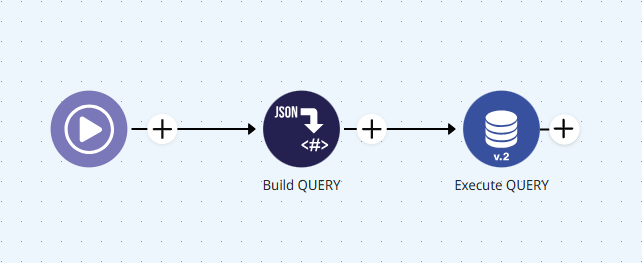
To use this feature, you must configure the SQL query in a connector like [**Template Transformer**](/documentation/connectors-and-triggers/connectors/tools/template-transformer.md) and then reference it in **DB V2**.
### **Step-by-step example**
#### **Step 1: Configure the pipeline**
Add a **Template Transformer** and a **DB V2** connector to your pipeline.
#### **Step 2: Configure the Template Transformer connector**
* **Preserve Original:** Enable this option.
* **Body:** Set the following body:
```sql
SELECT * FROM
${table}
WHERE
<#if id?? >
ID = {{ message._query.id }}
<#if code??>
CODE = {{ message._query.code }}
```
#### **Step 3: Configure the DB V2 connector**
**General tab:**
* **Account Type**: Select the type of account you configured.
* **Account:** Choose the account used to authenticate with the database.
**Operation tab:**
* **Type:** Select `QUERY`.
* **Database URL:** Enter your database URL, such as `jdbc:mysql://myserver/mydb`.
* **SQL Statement:** Set the SQL statement to: `{{ message.query }}`
**Advanced Settings tab:**
* **Raw SQL Statement**: Enable this option.
#### **Step 4: Test the execution**
On the [**Execution panel**](/documentation/developer-guide/development-cycle/build-overview/canvas/execution-panel.md), test the following input payloads:
**Payload for Query 1:**
```json
{
"query": {
"table": "TABLE_1",
"id": 123
}
}
```
**Payload for Query 2:**
```json
{
"query": {
"table": "TABLE_2",
"code": "ABC"
}
}
```
The expected results for each query are:
**Result for Query 1:**
```json
{
"data": [
{
"id": 123,
"name": "John",
"role": "Developer",
...
}
],
"updateCount": 0,
"rowCount": 1
}
```
**Result for Query 2:**
```json
{
"data": [
{
"code": "ABC",
"fullName": "Paul Smith",
"zipCode": "99999",
...
}
],
"updateCount": 0,
"rowCount": 1
}
```
**Understanding the output**
The query result is returned as a JSON with three main properties:
* `data`: An array of objects representing each row returned. Each object contains the columns selected by the query.
* **Example:** If your query is `SELECT name FROM TABLE_1 WHERE ID = 123`, each object in the `data` array will contain only the `name` property.
* `updateCount`: The number of rows affected by the SQL command. For `SELECT` operations, this is always `0`, as no table is affected.
* `rowCount`: The number of rows returned by the query.
{% hint style="info" %}
Although other connectors like [**JSON Generator**](/documentation/connectors-and-triggers/connectors/tools/json-generator.md) or [**Transformer (JOLT)**](/documentation/connectors-and-triggers/connectors/tools/jolt-v2.md) can also be used to define the query string, **Template Transformer** offers some important advantages:
* Uses **FreeMarker** technology to validate data before executing the target query.
* Helps prevent **SQL Injection**: the Double Braces declaration is not resolved by **Template Transformer** itself, but by **DB V2**, which configures and validades the SQL statement parameters in advance using **Prepared Statements**.
* Provides a **safer and easier** way to create queries in your pipeline.
{% endhint %}
---
# Agent Instructions
This documentation is published with GitBook. GitBook is the documentation platform designed so that both humans and AI agents can read, navigate, and reason over technical content effectively. Learn more at gitbook.com.
## Querying This Documentation
If you need additional information that is not directly available in this page, you can query the documentation dynamically by asking a question.
Perform an HTTP GET request on the current page URL with the `ask` query parameter, and the optional `goal` query parameter:
```
GET https://docs.digibee.com/documentation/connectors-and-triggers/connectors/structured-data/db-v2/db-v2-usage-scenarios.md?ask=&goal=
```
`ask` is the immediate question: it should be specific, self-contained, and written in natural language.
`goal` is optional and describes the broader end goal you are ultimately trying to accomplish on behalf of the user. GitBook uses it to tailor the answer towards what is most useful for that goal.
The response will contain a direct answer to the question and relevant excerpts and sources from the documentation.
Use this mechanism when the answer is not explicitly present in the current page, you need clarification or additional context, or you want to retrieve related documentation sections.