> For the complete documentation index, see [llms.txt](https://docs.digibee.com/documentation/llms.txt). Markdown versions of documentation pages are available by appending `.md` to page URLs; this page is available as [Markdown](https://docs.digibee.com/documentation/platform-administration/settings/data-streaming/how-to.md).
# How to use Data Streaming with Datadog
Learn how to stream your data automatically to Datadog.
{% hint style="info" %}
Only users with the `data-streaming-manager` role can create, update, read, and delete data streams. To learn more, see the [Roles](/documentation/platform-administration/administration/new-access-control/access-control-roles.md) documentation.
{% endhint %}
Enabling the **Data Streaming** feature allows you to export or consume data through external tools and systems of your choice automatically.
Follow the steps below to learn how to use Data Streaming with **Datadog**.
## Step 1: Get the Datadog URL
You can identify your **specific URL** by looking at the address bar when you are logged into your Datadog account. For most users, this will be the website you use to access your Datadog dashboards. The Datadog URL is usually in the format [`app.datadoghq.com`](https://app.datadoghq.com) or with a regional prefix, for example [`us5.datadoghq.com`](https://us5.datadoghq.com).
### Datadog regional URL
If you are using an **EU Datadog site**, make sure to use the corresponding regional URL (for example, [`app.datadoghq.eu`](https://app.datadoghq.eu)).
To identify your Datadog regional URL, you have two options:
* **Look at the address bar:** The simplest method is to look at the URL in the address bar when you are logged into Datadog. This will show you the regional domain you are using.
* **Visit status.datadoghq.com and check which region is listed for your organization:** Most Datadog customers in Brazil typically use the URL with the regional prefix **us5** `(`[`us5.datadoghq.com`](https://us5.datadoghq.com)`)`, however it’s important to confirm which specific site your organization uses.
## Step 2: Get the Datadog API key
1. Log in to your Datadog account.
2. Click your profile picture in the bottom left corner of the screen.
3. Under **Organization settings**, select **API keys**.
4. Create a new API key by clicking **New key**.
5. Give your key a descriptive name such as "Digibee Integration".
6. Copy the key to use it later on the Digibee Integration Platform.
**Recommendations**:
* API keys are sensitive credentials. Treat them like passwords.
* Ensure the API key has the appropriate permissions for data input.
* For security reasons, consider using a dedicated API key just for this integration.
## Step 3: Configure the Digibee Integration Platform
1. On the Digibee Platform, click **Settings** on the top right corner of the page.
2. In the Settings menu, click **Data streaming**.
3. Click **Create**.
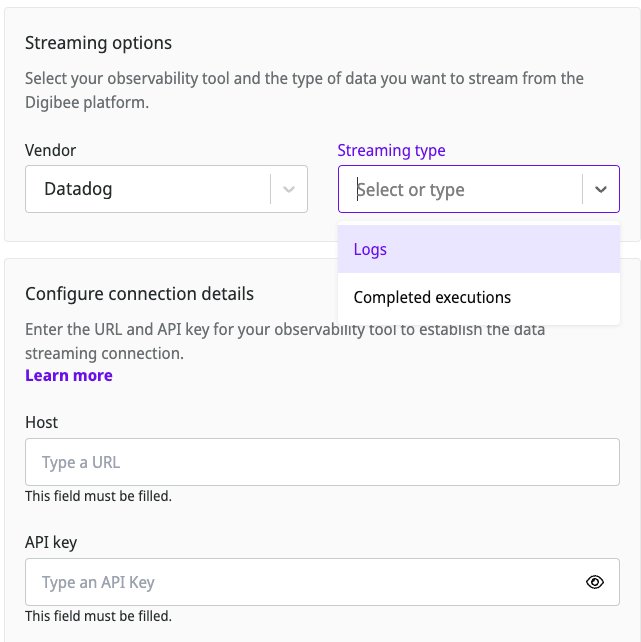
4. On **Vendor**, select **Datadog**. On **Streaming type**, select **Log** or **Completed Executions**.
5. Configure the connections details:
1. **Host:** Paste the Datadog URL.
2. **API Key:** Paste the Datadog API Key.
6. Click **Save**.
## Visualize the Data Streaming on Datadog
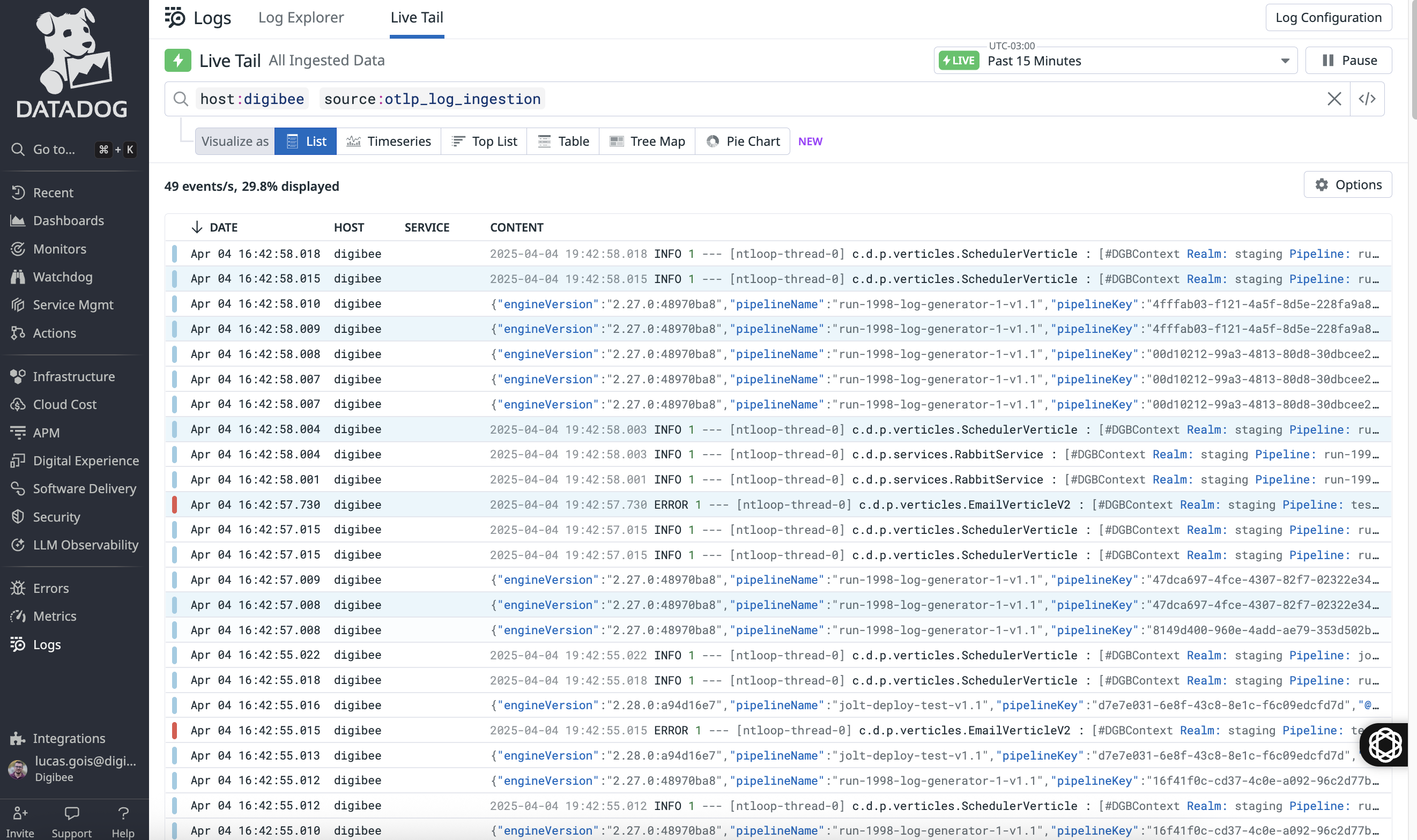
To view data in Datadog:
1. On the logs screen, apply the **Source** filter and set the value to `otlp_log_ingestion`. The filter returns everything that is collected, pipeline logs, or completed execution data.
2. Apply the **Host** filter and set the value to `digibee`.
After applying the new configuration, it may take a few seconds for the data to become available due to the update processing time. This interval may vary, but it typically doesn’t exceed a few minutes. If the data are not visible after 10 minutes, please [contact the Digibee Support team](/documentation/troubleshooting/help-and-faq/support.md).
---
# Agent Instructions
This documentation is published with GitBook. GitBook is the documentation platform designed so that both humans and AI agents can read, navigate, and reason over technical content effectively. Learn more at gitbook.com.
## Querying This Documentation
If you need additional information that is not directly available in this page, you can query the documentation by asking a question.
Perform an HTTP GET request on the following URL with the `ask` and `goal` query parameters:
```
GET https://docs.digibee.com/documentation/platform-administration/settings/data-streaming/how-to.md?ask=&goal=
```
`ask` is the immediate question: it should be specific, self-contained, and written in natural language.
`goal` is what the user is ultimately trying to achieve, the reason they need the answer. Sharing it helps GitBook give you a better, more relevant answer. A goal is most helpful when it describes the outcome the user wants rather than restating the question. For example, with `ask=how do I create an API token`, a goal like `automate deployments from our CI pipeline` lets GitBook tailor the answer to that use case.
The response will contain a direct answer to the question and relevant excerpts and sources from the documentation.
Use this mechanism when the answer is not explicitly present in the current page, you need clarification or additional context, or you want to retrieve related documentation sections.