> For the complete documentation index, see [llms.txt](https://docs.digibee.com/documentation/llms.txt). Markdown versions of documentation pages are available by appending `.md` to page URLs; this page is available as [Markdown](https://docs.digibee.com/documentation/developer-guide/development-cycle/build-overview/accounts/new-oauth2-architecture/registration-of-new-oauth-providers.md).
# Registration of new OAuth providers
Learn how to create a new OAuth provider in the Digibee Integration Platform.
**OAuth** is an authorization protocol that allows an application to access a user's resources and information without requiring the user's credentials. On the Digibee Integration Platform users can register **providers** and use them independently and autonomously in their integrations.
In this documentation you will learn how to create a new provider and how to use it to create your next providers.
{% hint style="info" %}
Once the application is created on the provider, it’s possible to register your new OAuth provider on the Digibee Integration Platform. To learn how to create an application, [read the article about OAuth architecture on Digibee.](/documentation/developer-guide/development-cycle/build-overview/accounts/new-oauth2-architecture.md)
{% endhint %}
## Create a new provider
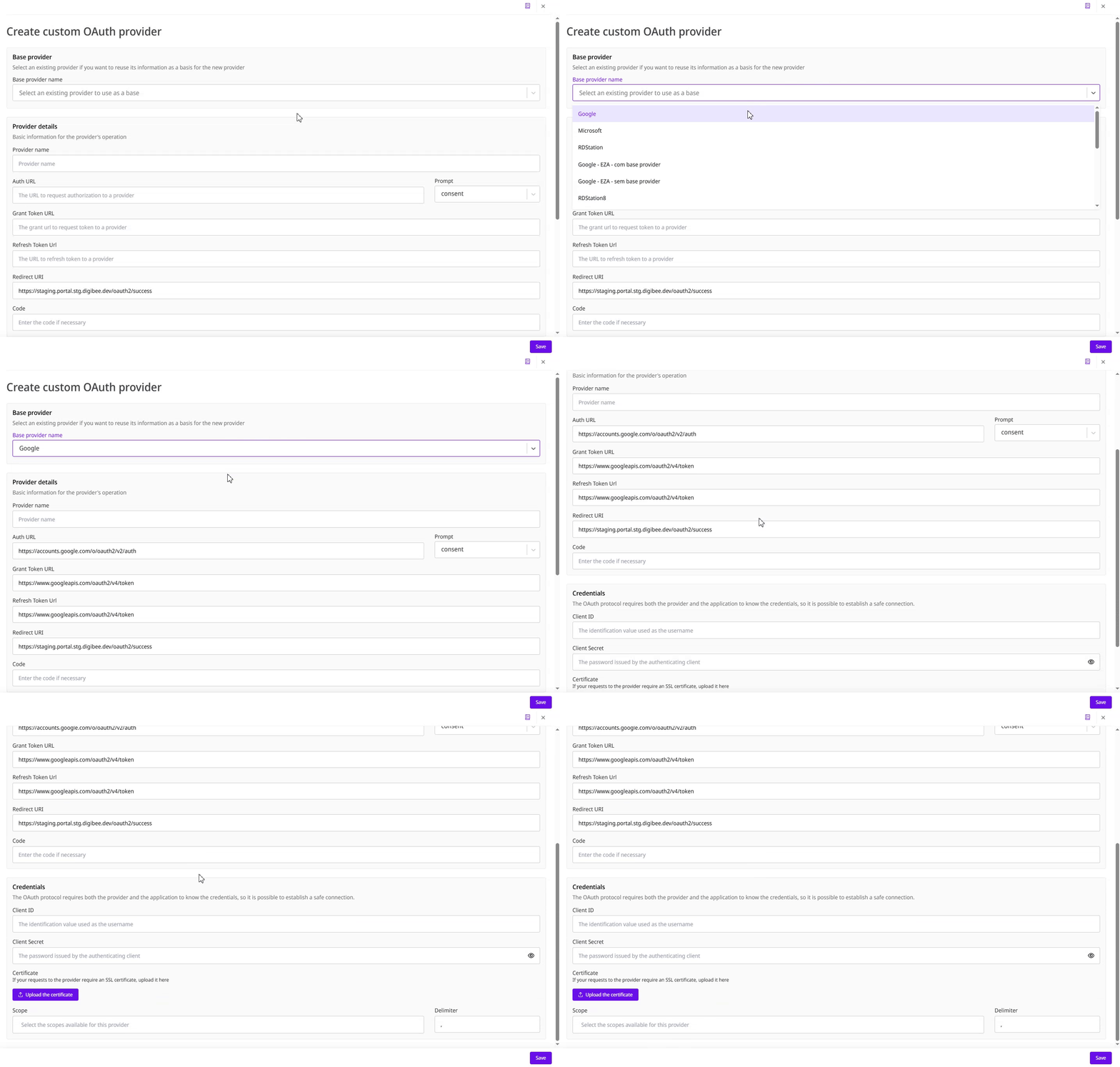
When you create a new provider, it can be set as a **base provider**. This means it can be used as a "template" to simplify filling in information when creating other providers.
If you want to create a new provider based on an existing one, select the provider on the **Base provider field. The Auth URL, Grant Token URL, and Refresh Token URL information will be filled in automatically. You should include the Client ID, Client Secret, Scope,** and, if necessary, the **Code**.
To create a new provider:
1. On **Settings**, access the **Accounts** page.
2. Click the **OAuth provider** submenu.
3. Click **Create**.
4. On the **Provider details** section, fill in the following fields:
1. **Provider name:** The name of the provider.
2. **Auth URL:** The URL to request authorization to a provider.
3. **Prompt:**
* **consent (default):** Prompts the user to grant the application permissions after logging in.
* **login:** Makes the user enter their credentials on the request, denying a single-sign on.
* **none:** Ensures the user isn't shown any prompts. If silent single sign-on fails, the Microsoft identity platform returns an `interaction_required` error.
* **select\_account:** Interrupts single sign-on to show account selection, listing all active or remembered accounts, or an option to use a different account.
4. **Grant Token URL:** The grant URL to request a token to a provider.
5. **Refresh Token URL:** The URL to refresh a token to a provider.
6. **Redirect URI:** The redirect URI is automatically generated when opening the provider creation form.
7. **Code (Optional):** The need for it varies according to the provider.
5. Fill in the **credentials**:
1. **Client ID:** Identification value used as the username.
2. **Client Secret:** The password issued by the authenticating client.
3. **Certification and password (Optional):** Certificate file and certification password. Accepted formats: `.pem`, `.crt`, `.p12`, `.pfx`.
4. **Scope**: Data or features that the platform can access via the provider. Scope rules vary depending on the provider.
5. **Delimiter:** The default is a comma `(,)` and it should only be changed if necessary. For example, Microsoft uses a blank space `("")` as the delimiter.
6. Click **Save.**
Once the new provider is created, it will be possible to edit and delete it on the **OAuth providers** page. While editing the provider, sensitive fields such as **Client Secret** and **Client ID** appear blank and are not visible for security reasons.
---
# Agent Instructions
This documentation is published with GitBook. GitBook is the documentation platform designed so that both humans and AI agents can read, navigate, and reason over technical content effectively. Learn more at gitbook.com.
## Querying This Documentation
If you need additional information that is not directly available in this page, you can query the documentation dynamically by asking a question.
Perform an HTTP GET request on the current page URL with the `ask` query parameter, and the optional `goal` query parameter:
```
GET https://docs.digibee.com/documentation/developer-guide/development-cycle/build-overview/accounts/new-oauth2-architecture/registration-of-new-oauth-providers.md?ask=&goal=
```
`ask` is the immediate question: it should be specific, self-contained, and written in natural language.
`goal` is optional and describes the broader end goal you are ultimately trying to accomplish on behalf of the user. GitBook uses it to tailor the answer towards what is most useful for that goal.
The response will contain a direct answer to the question and relevant excerpts and sources from the documentation.
Use this mechanism when the answer is not explicitly present in the current page, you need clarification or additional context, or you want to retrieve related documentation sections.